Colour mode
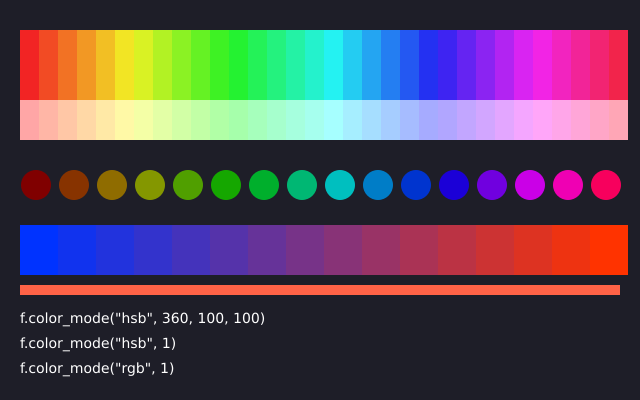
f.color_mode() changes how a tuple of numbers is read as a colour. In "hsb" mode the three numbers are hue, saturation and brightness. In "rgb" mode with a range of 1, red, green and blue run from 0 to 1 instead of 0 to 255. Names like "tomato" and hex strings like "#FF6347" are not changed. Each mode remembers its own ranges.
How it works
- f.color_mode("hsb", 360, 100, 100) says that a tuple is hue, saturation and brightness. The three numbers are the top of each range.
- With one number, f.color_mode("hsb", 1), every part runs from 0 to 1 instead.
- f.color_mode("rgb", 1) reads a tuple as red, green and blue from 0 to 1.
- The mode stays until you change it. The last f.color_mode("rgb", 255) puts back the default.
- A name like "tomato" reads the same in every mode. Only tuples and plain numbers are affected.
Make it yours
- Change the 85 in the first band's tuple for a paler or stronger colour. Try 40.
- Change 95 to make the first band darker or lighter.
- Add a band of your own after the first color_mode line, such as f.fill((i * 360 / 32, 100, 50)).
- In the "rgb", 1 section, change 0.2 to see how the green part changes the blend.
- Try f.color_mode("hsb", 100) and give each part a number from 0 to 100.
The code
Copy it into a file and run it.
"""Colour mode

f.color_mode() changes how a tuple of numbers is read as a colour. In "hsb" mode the three
numbers are hue, saturation and brightness. In "rgb" mode with a range of 1, red, green and
blue run from 0 to 1 instead of 0 to 255. Names like "tomato" and hex strings like "#FF6347"
are not changed. Each mode remembers its own ranges.

How it works:
- f.color_mode("hsb", 360, 100, 100) says that a tuple is hue, saturation and brightness. The three
  numbers are the top of each range.
- With one number, f.color_mode("hsb", 1), every part runs from 0 to 1 instead.
- f.color_mode("rgb", 1) reads a tuple as red, green and blue from 0 to 1.
- The mode stays until you change it. The last f.color_mode("rgb", 255) puts back the default.
- A name like "tomato" reads the same in every mode. Only tuples and plain numbers are affected.

Make it yours:
- Change the 85 in the first band's tuple for a paler or stronger colour. Try 40.
- Change 95 to make the first band darker or lighter.
- Add a band of your own after the first color_mode line, such as f.fill((i * 360 / 32, 100, 50)).
- In the "rgb", 1 section, change 0.2 to see how the green part changes the blend.
- Try f.color_mode("hsb", 100) and give each part a number from 0 to 100.
"""
import funground as f


def setup():
    f.size(640, 400)


def draw():
    f.background((30, 30, 40))                     # 0-255 numbers: the default mode
    f.no_stroke()

    f.color_mode("hsb", 360, 100, 100)             # hue 0-360, saturation and brightness 0-100
    for i in range(32):                            # a band of hues
        f.fill((i * 360 / 32, 85, 95))
        f.rect(20 + i * 19, 30, 19, 70)
    for i in range(32):                            # the same hues, paler, in a second band
        f.fill((i * 360 / 32, 35, 100))
        f.rect(20 + i * 19, 100, 19, 40)

    f.color_mode("hsb", 1)                         # now every part runs from 0 to 1
    for i in range(16):
        f.fill((i / 16, 1, 0.5 + i / 32))          # one hue per square, getting lighter
        f.circle(36 + i * 38, 185, 30)

    f.color_mode("rgb", 1)                         # red, green, blue from 0 to 1
    for i in range(16):
        f.fill((i / 15, 0.2, 1 - i / 15))
        f.rect(20 + i * 38, 225, 38, 50)
    f.fill("tomato")                               # a name is read the same in every mode
    f.rect(20, 285, 600, 10)

    f.color_mode("rgb", 255)                       # back to the ordinary 0-255 reading
    f.fill(255)                                    # one number is a grey
    f.text_size(14)
    f.text('f.color_mode("hsb", 360, 100, 100)', 20, 310)
    f.text('f.color_mode("hsb", 1)', 20, 335)
    f.text('f.color_mode("rgb", 1)', 20, 360)


f.run()