10. Interaction: mouse, keyboard and controls
There are two ways to react to the mouse and keyboard. Section 3 adds sliders, checkboxes and buttons.
1. Look, every frame
Inside draw(), check where things are:
| Value | Meaning |
|---|---|
f.mouse_x, f.mouse_y |
Where the mouse is |
f.pmouse_x, f.pmouse_y |
Where it was in the previous frame |
f.is_mouse_pressed |
True while a mouse button is held |
f.mouse_button |
The last button pressed: "left", "center" or "right" |
f.key_down("left") |
True while that key is held: "left", "right", "up", "down", "space", "enter", "escape" or any single character |
f.is_key_pressed |
True while any key is held |
f.key, f.key_code |
The last key pressed: a character like "a", or a name like "left" / its code |
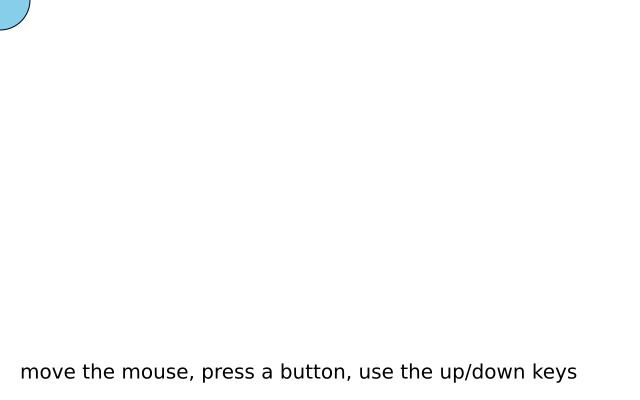
import funground as f


def setup():
    f.size(640, 400)


def draw():
    f.background("white")
    f.fill("tomato" if f.is_mouse_pressed else "skyblue")
    f.circle(f.mouse_x, f.mouse_y, 60)


f.run()
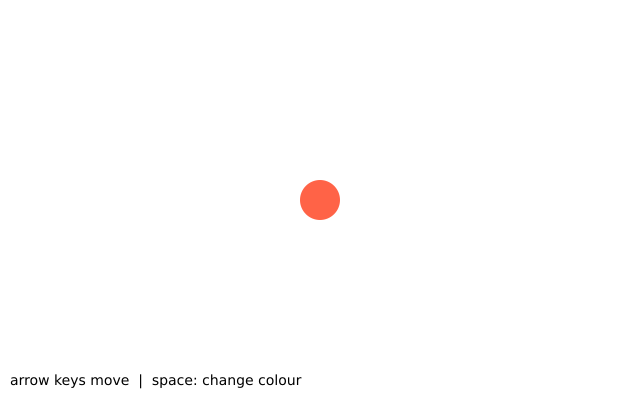
Held keys work the same way: check f.key_down("left") inside draw() and move a little each
frame. The gallery's Move with the keyboard example does exactly that.
2. Be told, when it happens
Define a function with one of these names and funground calls it when that thing happens —
once per click or key press, just before the next draw():
| Define… | Called when |
|---|---|
mouse_pressed() / mouse_released() |
a mouse button goes down / up |
mouse_clicked() |
a button is pressed and released |
mouse_moved() / mouse_dragged() |
the mouse moves / moves with a button held |
mouse_wheel(delta) |
the wheel turns; delta is positive when scrolling down |
key_pressed() / key_released() |
a key goes down / up (f.key says which) |
key_typed() |
a character key is typed (not arrows or Shift) |
Callbacks are the right tool for "do this once per click": looking at f.is_mouse_pressed in
draw() would do it every frame the button is held.
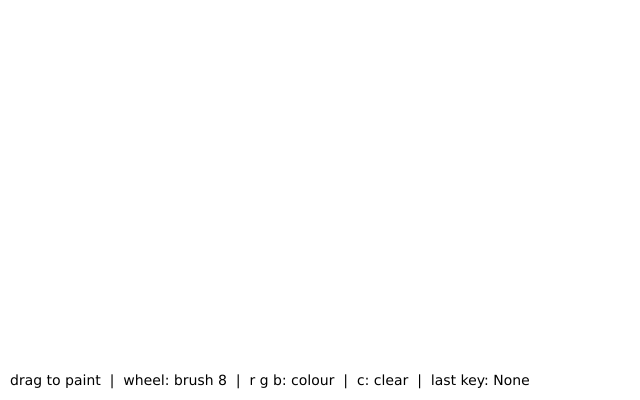
import funground as f

colour = "tomato"


def setup():
    f.size(640, 400)
    f.background("white")


def draw():
    pass


def mouse_dragged():
    f.stroke(colour)
    f.stroke_width(8)
    f.line(f.pmouse_x, f.pmouse_y, f.mouse_x, f.mouse_y)


def key_pressed():
    global colour
    if f.key == "c":
        f.background("white")
    if f.key == "b":
        colour = "navy"


f.run()
Callbacks keep working while the sketch is paused with f.no_loop() — which is how a key can
call f.redraw() or f.loop(). See 7. Animation and time.
Escape always ends a sketch.
3. Controls: sliders, checkboxes and buttons
Sometimes the easiest way to try a number is to move it. funground gives you three controls. They sit in a panel below the canvas, one row each, in the order you made them.
| Make it with | Read it with |
|---|---|
f.create_slider(low, high, value, step, label) |
slider.value() |
f.create_checkbox(label, checked) |
box.checked() |
f.create_button(label) |
button.clicked() |
Make each control once, in setup(), and keep it in a variable. Then ask it for its value in
draw(). If you make one inside draw(), you get an error that tells you to move it, because
draw() runs every frame and would make a new control each time.
import funground as f


def setup():
    global size, filled, more
    f.size(400, 300)
    size = f.create_slider(10, 120, 60, step=10, label="size")
    filled = f.create_checkbox("filled", True)
    more = f.create_button("add a dot")


dots = []


def draw():
    f.background("white")
    if more.clicked():                 # true once for each click
        dots.append((f.random(0, f.width), f.random(0, f.height)))
    if filled.checked():
        f.fill("tomato")
    else:
        f.no_fill()
    for x, y in dots:
        f.circle(x, y, size.value())


f.run()
A few things to know:
valueandstep. A slider starts atvalue, or atlowif you leave it out. With astep, it moves in whole steps fromlow.slider.value(30)sets it from your code; the number is kept betweenlowandhigh. Alowthat is not belowhigh, or astepof 0 or less, is aValueError.clicked()isTrueonce for each click. Ask again straight away and the answer isFalse.- The panel is not the canvas.
f.widthandf.heightdo not count it,f.mouse_ynever reaches into it, andf.save()andf.get()do not see it. Clicks on a control do not callmouse_pressed(). - Make controls before
f.full_screen(). In full screen the panel takes its strip of the screen when the window opens. - Controls need an animated sketch. A script (a file that ends with
f.show()) has no loop to read them, so making a control there is an error. - No window? With
FUNGROUND_HEADLESS=1the controls keep their values, and setting them still works, so you can test a sketch.
Hiding a control. Every control has visible(). control.visible(False) hides it and
control.visible(True) shows it again. A hidden control is not drawn and cannot be used, but it
keeps its value, and its space in the panel stays blank. The window never changes size. You can call
visible() in draw().
size = f.create_slider(10, 120, 60, label="size")   # in setup()

# in draw():
size.visible(not f.is_mouse_pressed)    # hide the slider while the mouse is down
f.is_mouse_pressed is the live value and mouse_pressed() is the callback, as in p5.js.
See also
- Gallery: Interaction.
- Quick Reference: 5. Mouse, keyboard and useful helpers.
- Controls in
draw()? See When something goes wrong.
Try it
- Draw a circle that follows the mouse and gets bigger while a button is held.
- Press the arrow keys to move a square around. Hint:
f.key_down("left"). - Add a slider for the size of a circle and a checkbox that turns the fill on and off.
Next: 11. Randomness and noise