funground Quick Reference
Version 0.1.0.dev0 — a small visual-programming library. import funground as f; print(f.__version__)
prints 0.1.0.dev0.
This reference lists every public name in funground. For exact arguments, results and an example of each name, see the API reference. Every function has a
one-line description; every section ends with one complete sketch, and the picture above that sketch
was produced by running it (examples/reference/, regenerated by python tools/make_reference_images.py).
The example code is free to copy and use in any way, with no conditions (CC0, examples/LICENSE).
Contents: 1 The basic idea · 2 Coordinates and drawing · 3 Colours, fill, stroke and text · 4 Animation · 5 Mouse, keyboard and helpers · 6 Saving a picture · 7 Transforms and the state stack · 8 Shapes, paths and clipping · 9 Cheat sheet · 10 Named colours and fixed names · What changed since v0.5
1. The basic idea
Import funground as f, define a one-time setup(), define a repeating draw(), then call f.run().
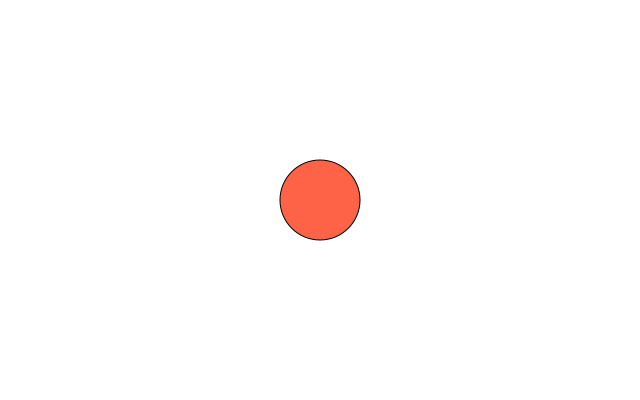
import funground as f


def setup():
    f.size(640, 400)                 # runs once: make the window


def draw():
    f.background("white")            # runs again and again, up to 60 times a second
    f.fill("tomato")
    f.circle(320, 200, 80)


f.run()                              # finds setup() and draw() in this file and starts
What happens
setup()runs once. It is normally where you create the window withf.size(...).draw()runs again and again, up to the selected frame rate. Put drawing commands — and animation changes — here.f.run()starts the sketch. It finds the standardisedsetup()anddraw()functions in your file, so you do not pass them as arguments.setup()is optional;draw()is required.- There is still no
update()callback. If an object moves, update its variables insidedraw().
Window setup and running
| Call | What it does | Example |
|---|---|---|
f.size(width, height) |
Create or resize the window. | f.size(640, 400) |
f.size(..., title="...") |
Set the window title. | f.size(640, 400, title="Bounce") |
f.size(..., fps=30) |
Choose the target frames per second (default 60). | f.size(640, 400, fps=30) |
f.run() |
Run setup() once, then draw() repeatedly. |
f.run() |
f.run(fps=30) |
The same, overriding the frame rate. | f.run(fps=30) |
f.run(max_frames=100) |
stop by itself after that many frames — for tests, scripts and headless runs. | f.run(max_frames=100) |
f.show() |
Scripts: open a window on what you have drawn and wait until it is closed (or Escape). Needs f.size() first. Returns at once headless. |
f.show() |
f.new_page() |
Scripts: end this page and start a blank one of the same size. The transform starts afresh; colours and other settings carry over. | f.new_page() |
f.new_page(width, height), f.new_page("A4") |
The same, with a size in points, or a page name: "A3", "A4", "A5", "B5", "Letter", "Legal", "Tabloid", "Square" (add "Landscape" to turn it). f.save("x.pdf") then writes every page; PNG and SVG write x_1.png, x_2.png, …; f.show() turns pages with the arrow keys. |
f.new_page("A5") |
f.page_count() |
How many pages the document has so far. | f.page_count() |
f.page_size(name, landscape=False) |
The (width, height) of a named page, in points. |
f.size(*f.page_size("A4")) |
f.stop() |
Ask the main loop to stop after the current draw(). |
if f.frame_count > 600: f.stop() |
f.width, f.height |
Current window size. Live values, exactly what you passed to f.size(). |
f.circle(f.width / 2, f.height / 2, 80) |
The window closes with the close button, the Escape key or f.stop(). If setup() never calls
f.size(), f.run() opens a 640×480 window for you.
A file can also be a script. With no setup(), no draw() and no f.run(), write the drawing at
the top level: f.size(w, h) makes a canvas with no window, f.save("a.png") writes a file at once,
and f.show() opens a window to look at it. A file is one style or the other — see chapter 2 of the
User Guide.
Running without a window. Set the environment variable FUNGROUND_HEADLESS=1 and the same sketch
runs with no window at all — f.save() still writes files, f.mouse_x is 0 and no key is ever down.
Combine it with max_frames to make pictures from a script (this is how the images in this document
are made).
2. Coordinates and drawing
The origin (0, 0) is the top-left corner. x increases to the right and y increases downward.
Coordinates are in logical pixels: on a high-DPI screen the window is drawn crisply at the screen's
real resolution, but f.width is still the number you asked for.
# useful positions
left = 0
right = f.width
top = 0
bottom = f.height
center_x = f.width / 2
center_y = f.height / 2
Shape functions
| Call | What it does | Example |
|---|---|---|
f.circle(x, y, diameter) |
Circle centred at (x, y). The last argument is the diameter, not the radius. | f.circle(100, 80, 40) |
f.ellipse(x, y, width, height) |
Ellipse centred at (x, y). | f.ellipse(220, 80, 100, 50) |
f.rect(x, y, width, height, *radii) |
Rectangle whose (x, y) is the top-left corner. Add one radius to round all corners, or four radii (top-left, top-right, bottom-right, bottom-left), as in p5. Radii cannot be negative; big ones are cut to half the shorter side. | f.rect(40, 160, 120, 60, 12) |
f.rect_mode(mode) |
How rect and square read their numbers: "corner" (default), "corners" (two opposite corners), "center", "radius" (centre, then half-sizes). Saved by push/pop. |
f.rect_mode("center") |
f.ellipse_mode(mode) |
How ellipse, circle and arc read their numbers: "center" (default), "radius", "corner" (top-left of the box), "corners". Saved by push/pop. |
f.ellipse_mode("corner") |
f.image_mode(mode) |
How image reads its numbers: "corner" (default), "center", "corners" (needs a width and height: the opposite corner). Saved by push/pop. |
f.image_mode("center") |
f.line(x1, y1, x2, y2) |
Line from one point to another. | f.line(220, 160, 340, 220) |
f.point(x, y) |
A dot in the stroke colour, about stroke_width across. |
f.point(400, 100) |
f.square(x, y, size, *radii) |
Square whose (x, y) is the top-left corner. Takes corner radii like rect. |
f.square(40, 40, 60, 10) |
f.triangle(x1, y1, x2, y2, x3, y3) |
Filled triangle through three corners. | f.triangle(10, 90, 90, 90, 50, 10) |
f.quad(x1, y1, … x4, y4) |
Four-sided shape through four corners in order. | f.quad(20, 20, 80, 20, 80, 80, 20, 80) |
f.polygon(points) |
Closed shape through a list of (x, y) points. |
f.polygon([(0, 0), (50, 20), (20, 60)]) |
f.arc(x, y, w, h, start, stop, mode="open") |
Part of an ellipse centred at (x, y); angles in degrees, clockwise from the right. Modes "open", "chord", "pie". |
f.arc(100, 100, 80, 80, 0, 270, "pie") |
f.background(color) / f.background(r, g, b) |
Fill the whole window with one colour; numbers may be separate arguments (ignores fill, stroke, transforms and clips). | f.background("white") |
f.clear() |
Make every pixel transparent; a saved PNG keeps the transparency (the window shows it black). | f.clear() |
Changed since Playground 0.5: fractional coordinates such as f.circle(500.5, 80.25, 40) are honoured and every
edge is anti-aliased, so shapes have smooth edges instead of stair-steps. Drawing before f.size() is
an error that names f.size.
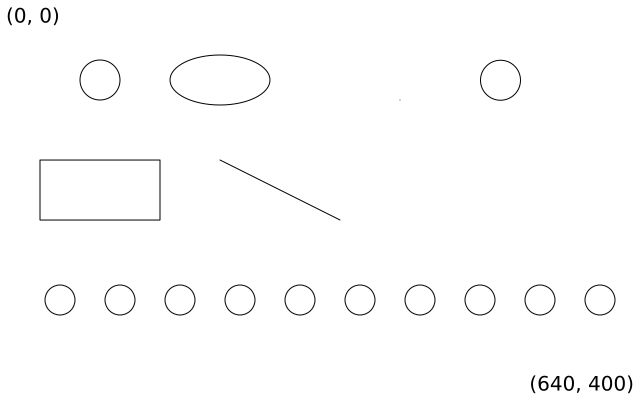
import funground as f


def setup():
    f.size(640, 400)


def draw():
    f.background("white")

    # The origin (0, 0) is the top-left corner: x grows to the right, y downwards.
    f.fill("black")
    corner = f"({f.width}, {f.height})"
    f.text("(0, 0)", 6, 4)
    f.text(corner, f.width - f.text_width(corner) - 6, f.height - 28)

    f.fill("white")
    f.stroke("black")
    f.circle(100, 80, 40)            # x, y, diameter
    f.ellipse(220, 80, 100, 50)      # centre x, centre y, width, height
    f.rect(40, 160, 120, 60)         # top-left x, y, width, height
    f.line(220, 160, 340, 220)       # x1, y1, x2, y2
    f.point(400, 100)                # a dot in the stroke colour

    # Fractional positions are honoured and every edge is anti-aliased (v0.6).
    f.circle(500.5, 80.25, 40)

    # Drawing many things with for
    for x in range(60, 601, 60):
        f.circle(x, 300, 30)


f.run()
A decision with if
if f.mouse_x < f.width / 2:
    f.fill("tomato")
else:
    f.fill("skyblue")
f.circle(f.mouse_x, f.mouse_y, 40)
Ground: page names, margins, areas, grids and units
| Call | What it does | Example |
|---|---|---|
f.size("A4", landscape=True) |
A page name instead of numbers (the names of f.page_size). |
f.size("A5") |
f.size(w, h, margin=m) |
Keep a margin free: one number, or (top, right, bottom, left). It is a guide, not a clip, and it stays across pages and resizes. |
f.size(600, 400, margin=30) |
f.ground |
The whole canvas as an area: left, top, right, bottom, width, height, cx, cy, plus margin. Read-only and always up to date. |
f.rect(f.ground.left, f.ground.top, f.ground.width, 20) |
f.ground.content |
The area inside the margins, with the same fields. With no margin it is f.ground. |
f.ground.content.left |
f.area(x, y, w, h) |
A rectangle kept as a value, with the same fields as f.ground. It never changes, and draws nothing by itself. w and h can be 0 but not negative. |
panel = f.area(40, 40, 300, 200) |
a.inset(n), a.inset(top=, right=, bottom=, left=) |
A new area with the edges moved in. A named side wins over n. A negative number moves the edge out, as for a bleed. Too much is a ValueError. |
page = f.ground.inset(f.mm(10)) |
f.grid(cols, rows, gutter=0, area=None), a.grid(cols, rows, gutter=0) |
A grid of equal cells over f.ground.content, or over the area. It works like a list, row by row, left to right: for, len(g), g[0], g[-1], g[1:3]. Each cell is an area with col, row and index, all from 0, so grids nest. gutter is one number or (across, down). |
for c in f.grid(3, 2, gutter=10): f.circle(c.cx, c.cy, c.width) |
g.cell(col, row) |
The cell at that column and row, counted from 0. | g.cell(2, 0) |
g.span(col, row, cols=1, rows=1) |
One area over several cells, with the gutters between them, so it lines up with the cells around it. | title = g.span(0, 0, cols=3) |
g.column_count, g.row_count, g.columns, g.rows |
How many columns and rows, and each column (full height) and row (full width) as an area. | for col in g.columns: f.line(col.left, 0, col.left, f.height) |
g.show(color=..., in_files=False) |
Thin guide lines: the outline of the area and of every cell. They show in the window only, over everything, and are left out of saved files, f.keep() and pixels. in_files=True draws them as ordinary lines, so files have them. Nothing about the drawing state changes. In draw() they last one frame. |
g.show() |
f.mm(n), f.inch(n) |
Millimetres and inches as funground units (72 to the inch). | f.size("A4", margin=f.mm(15)) |
3. Colours, fill, stroke and text
The recommended beginner forms are named colours, RGB tuples and hexadecimal strings. funground understands every colour form v0.5 did and parses it itself, so a name renders identically on every platform and every renderer. The complete named-colour appendix is at the end of this guide.
f.background("white")          # named colour
f.fill((255, 0, 0))            # RGB tuple: red, green, blue, each 0-255
f.fill("#F05A45")              # hex string
f.fill((0, 0, 255, 90))        # RGBA: the fourth value is the opacity, 0-255
f.fill("#FF000060")            # hex with alpha
Changed since Playground 0.5: alpha is honoured. (0, 0, 255, 64) draws translucent blue (v0.5 silently
dropped the fourth value). Lists and "0xRRGGBB" are still accepted. A packed integer is no
longer a colour: a single number is a grey (see below).
Fill and outline
| Call | What it does | Example |
|---|---|---|
f.color_mode(mode, max1=None, max2=None, max3=None, max_alpha=None) |
How numbers are read as a colour: "rgb" (default, 255), "hsb" or "hsl" (360, 100, 100, opacity 0–1). One range sets all four; three keep the opacity range; each mode remembers its own. Names, hex and colour objects are not affected. |
f.color_mode("rgb", 1) |
f.hsb(h, s, b, a=255) / f.hsl(h, s, l, a=255) |
Colour by hue: hue 0–360 (wraps), the rest 0–100. Always these ranges, whatever the colour mode. | f.fill(f.hsb(200, 80, 90)) |
f.color(value) / f.color(r, g, b, a) |
A colour you can read: .red .green .blue .alpha .hue .saturation .brightness .lightness. |
f.color("tomato").hue |
f.lerp_color(c1, c2, t) |
Mix two colours; 0 gives c1, 1 gives c2. | f.lerp_color("red", "blue", 0.5) |
f.linear_gradient(x1, y1, x2, y2, colors, stops=None) |
colours blended along a line; use it in fill, stroke or background. |
f.fill(f.linear_gradient(0, 0, 200, 0, ["red", "blue"])) |
f.radial_gradient(x, y, radius, colors, stops=None) |
colours blended outward from a centre. | f.background(f.radial_gradient(320, 200, 300, ["white", "navy"])) |
f.blend_mode(mode) |
how new drawing mixes with the canvas: "normal", "multiply", "screen", "add", "difference", … |
f.blend_mode("multiply") |
f.opacity(amount) |
everything drawn after is see-through; 0 invisible, 255 solid. | f.opacity(128) |
f.shadow(x, y, blur=5, color=...) / f.no_shadow() |
a soft shadow under everything drawn after. | f.shadow(4, 6, blur=8) |
f.erase(fill_strength=255, stroke_strength=255) / f.no_erase() |
everything drawn after removes what is under it (255 all, 128 about half) instead of painting; colours, gradients, tint, blend mode, opacity and shadow are ignored. Cut holes in a picture from f.create_graphics(). |
f.erase(); f.circle(50, 50, 40) |
f.fill(color) / f.fill(r, g, b) |
Set the inside colour of later shapes. Numbers may be separate arguments or one tuple. | f.fill("gold") |
f.no_fill() |
Do not fill later shapes. | f.no_fill() |
f.stroke(color) / f.stroke(grey) |
Set the outline / line colour. Numbers may be separate arguments or one tuple. | f.stroke("black") |
f.no_stroke() |
Do not draw outlines or lines. | f.no_stroke() |
f.stroke_width(pixels) |
Set outline and line thickness. Minimum is 1. | f.stroke_width(3) |
f.stroke_cap(cap) |
Line ends: "round" (default), "square" (extends past the end), "butt" (stops flat). |
f.stroke_cap("butt") |
f.stroke_join(join) |
Corners: "round" (default), "miter", "bevel". |
f.stroke_join("miter") |
f.miter_limit(n) |
How far a miter corner may stick out (default 10). | f.miter_limit(4) |
f.stroke_dash(pattern, offset=0) / f.no_dash() |
Dashed outlines; one length or a list of dash/gap lengths. | f.stroke_dash([12, 4]) |
f.no_smooth() / f.smooth() |
Hard pixel edges (pixel art) / smooth edges again. A sketch setting, not undone by pop(). |
f.no_smooth() |
Defaults: fill white, stroke black, width 1. Shapes are filled first and outlined on top.
Changed since Playground 0.5: strokes are centred on the edge — half of the stroke lies outside the shape's
geometry and half inside, as in p5, SVG and PDF (v0.5 painted the whole stroke inside). At the default
width of 1 you will not notice; at stroke_width(20) a rect(440, 60, 100, 100) covers 430…550.
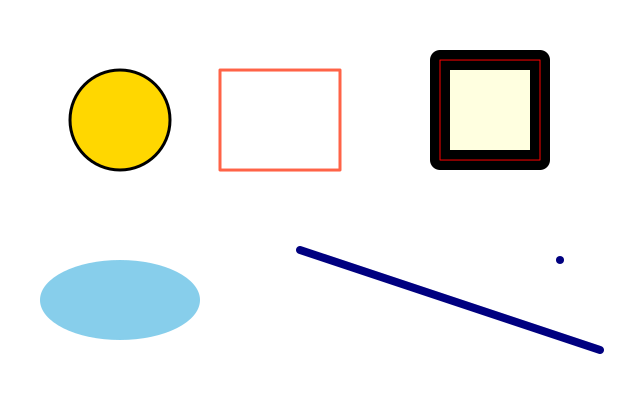
import funground as f


def setup():
    f.size(640, 400)


def draw():
    f.background("white")

    f.fill("gold")                   # inside colour of later shapes
    f.stroke("black")                # outline / line colour
    f.stroke_width(3)                # outline thickness, minimum 1
    f.circle(120, 120, 100)

    f.no_fill()                      # outline only
    f.stroke("tomato")
    f.rect(220, 70, 120, 100)

    f.fill("skyblue")
    f.no_stroke()                    # fill only
    f.ellipse(120, 300, 160, 80)

    f.stroke("navy")
    f.stroke_width(8)
    f.line(300, 250, 600, 350)       # lines and points use the stroke only
    f.point(560, 260)                # a dot about stroke_width across

    # Strokes are centred on the edge (v0.6): half of this 20-pixel band lies
    # outside the 100x100 square and half inside. The thin red rect is the geometry.
    f.fill("lightyellow")
    f.stroke("black")
    f.stroke_width(20)
    f.rect(440, 60, 100, 100)
    f.no_fill()
    f.stroke("red")
    f.stroke_width(1)
    f.rect(440, 60, 100, 100)


f.run()
Colour forms, all together
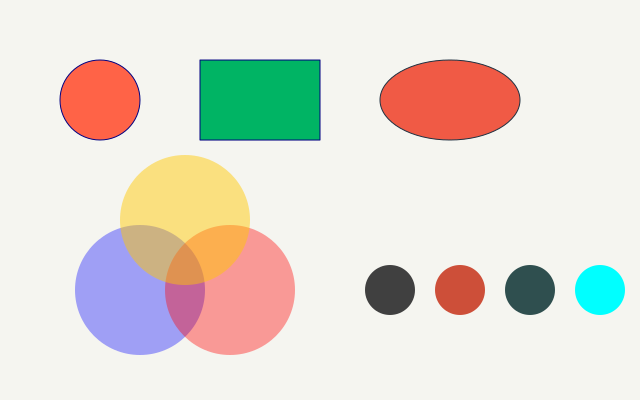
import funground as f


def setup():
    f.size(640, 400)


def draw():
    f.background((245, 245, 240))    # an RGB tuple, each value 0-255

    f.fill("tomato")                 # a named colour (see the appendix)
    f.stroke("navy")
    f.circle(100, 100, 80)

    f.fill((0, 180, 100))            # RGB
    f.rect(200, 60, 120, 80)

    f.fill("#F05A45")                # hex string
    f.stroke("#203040")
    f.ellipse(450, 100, 140, 80)

    # Alpha is honoured (v0.6): a fourth value 0-255, or "#RRGGBBAA".
    f.no_stroke()
    f.fill((0, 0, 255, 90))
    f.circle(140, 290, 130)
    f.fill("#FF000060")
    f.circle(230, 290, 130)
    f.fill((255, 200, 0, 120))
    f.circle(185, 220, 130)

    # Every pygame-ce colour name works, on every platform (capitals and spaces are ignored).
    for i, name in enumerate(["gray25", "tomato3", "darkslategrey", "aqua"]):
        f.fill(name)
        f.circle(390 + i * 70, 290, 50)


f.run()
Text
| Call | What it does | Example |
|---|---|---|
f.text_size(size) |
Set the size used by later text: an em of size pixels (default 20). |
f.text_size(28) |
f.text(message, x, y) |
Draw text with its top-left corner at (x, y). Any object: str() is applied. |
f.text("Hello", 30, 40) |
f.text(..., color=...) |
Choose a colour just for this text. Otherwise text uses the fill, then the stroke, then white. | f.text(f.frame_count, 30, 80, color="navy") |
f.text_width(message) |
how wide message will be at the current size, in pixels — to centre or right-align it. |
f.text(msg, (f.width - f.text_width(msg)) / 2, y) |
f.text_align(horizontal, vertical=None) |
which point of the text (x, y) is: "left"/"center"/"right", then "top"/"center"/"baseline"/"bottom". Default left, top. |
f.text_align("center", "center") |
f.text_ascent() / f.text_descent() |
how far letters reach above / below the baseline at the current size. | f.text_ascent() |
f.text_leading(n) |
distance between lines of text, in pixels; None = automatic (1.25 × size). A "\n" in f.text() starts a new line. |
f.text("two\nlines", 20, 20) |
f.text_box(message, x, y, width, height=None) |
wrap text inside a box; returns the text that did not fit, to flow into the next box. | rest = f.text_box(story, 20, 60, 280, 300) |
f.text_path(message, x, y) |
the outlines of f.text(message, x, y) as a new path, set with the current font, style, size, alignment and leading. Cut it, outline it, fill it or clip with it. It has no colour and is not moved by the current transform until you draw it. |
f.draw_path(f.text_path("Hi", 20, 20)) |
f.text_to_points(message, x, y, spacing=5) |
a list of (x, y) points along the outlines of f.text_path(message, x, y), one every spacing pixels (above 0). Each outline starts at its first point; curves are measured along the curve. An empty message gives []. Draws nothing. |
for x, y in f.text_to_points("hi", 20, 20, 6): f.circle(x, y, 3) |
f.current_font() |
the font text is set in now, as a font object (the built-in font too). Ask it font.family(), font.style(), font.variations() (axis tag to (minimum, default, maximum); {} if not variable), font.features() (sorted list of OpenType tags) and font.contains(text) (true when every character has a glyph; a space counts, a new line is ignored). |
f.current_font().contains("é") |
f.text_fallback(*fonts) |
fonts to try for letters the current font does not have, before the built-in fallbacks (Noto Emoji, Noto Sans Symbols 2, Noto Sans Devanagari). Fonts come from f.load_font() or f.system_font(). No arguments: only the built-in ones. None: no fallback, so a missing letter is an empty box. Emoji are drawn in one colour (the fill), and always from the emoji font. Part of the drawing state, so f.push() and f.pop() keep it. |
f.text_fallback(f.load_font("NotoSansJP.otf")) |
f.system_font(name) |
a font installed on this computer, found by family name (capitals do not matter; the Regular face if there are several) or by family and style, like "Nirmala UI Bold". It reads font collections (.ttc) too. Raises FileNotFoundError naming the font if there is none. A sketch that uses it can look different on another computer. |
f.text_fallback(f.system_font("Arial")) |
f.load_font(path, face=0) |
load a .ttf/.otf font file; pass the result to f.text_font(). A relative path is looked for next to the sketch file first, then the current folder. A .ttc file holds several fonts: face is the number of the one you want (0 is the first) or its style, like face="Bold". |
mono = f.load_font("fonts/DejaVuSansMono.ttf") |
f.text_font(font, size=None) |
use font (from f.load_font(), a path, or None) for later text; None returns to the built-in family. |
f.text_font(mono) / f.text_font(None) |
f.text_tracking(pixels) |
add this many pixels of space after every letter (the last one too); negative tightens. Changes f.text_width(), alignment, f.text_box() and f.text_path(). Default 0. |
f.text_tracking(4) |
f.text_features(**features) |
turn OpenType features on or off by their four-letter names. Calls add to each other; no arguments goes back to the font's defaults. | f.text_features(liga=False) |
f.font_variations(**axes) |
set a variable font's axes by name. An axis the font lacks is ignored, so it is harmless with a static font. No arguments goes back to the defaults. | f.font_variations(wght=700) |
f.FormattedString() |
text made of runs, each with its own look. fs.append(text, font=None, size=None, style=None, color=None, tracking=None, features=None, variations=None) adds a run and returns fs. A setting you leave out follows the drawing state when the text is drawn. str(fs), len(fs) and fs + other work. Pass it to f.text, f.text_box, f.text_width and f.text_path; f.text_box returns the overflow as a FormattedString. |
fs = f.FormattedString().append("Hi ").append("there", style="bold", color="red") |
f.text_style(style) |
choose one of the built-in family's four styles: "normal", "bold", "italic", "bold_italic". Ignored once a font is loaded, but remembered for when it is not. |
f.text_style("bold") |
Changed since Playground 0.5: text is drawn with the bundled DejaVu Sans font on every platform, and
text_size(n) is an n-pixel em — the CSS / p5 convention. Capital letters
come out about three-quarters of n, and text renders about 1.4× larger than v0.5 did for the same
number; text_size(20) is still the default. text_width() measures exactly the distance text()
advances and does not change under scale().
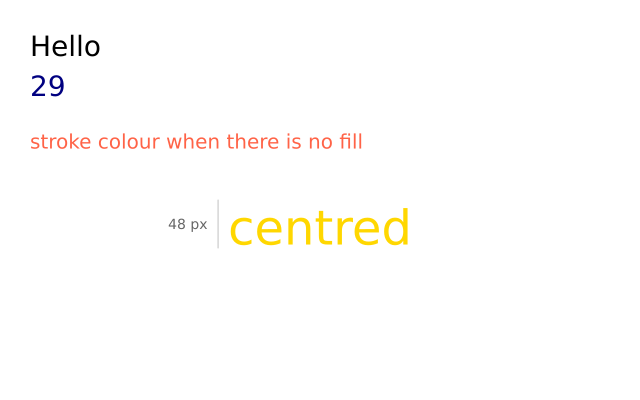
import funground as f


def setup():
    f.size(640, 400)


def draw():
    f.background("white")

    f.text_size(28)                  # a 28-pixel em (v0.6); the font is DejaVu Sans
    f.fill("black")
    f.text("Hello", 30, 30)          # (x, y) is the top-left of the text
    f.text(f.frame_count, 30, 70, color="navy")   # any object: str() is applied

    f.text_size(20)
    f.no_fill()
    f.stroke("tomato")
    f.text("stroke colour when there is no fill", 30, 130)

    # text_width() measures a message at the current size, e.g. to centre it.
    f.text_size(48)
    f.fill("gold")
    message = "centred"
    x = (f.width - f.text_width(message)) / 2
    f.text(message, x, 200)

    # The size is the em: text_size(48) reserves 48 pixels of line height;
    # capital letters come out about three-quarters of that.
    f.stroke("silver")
    f.stroke_width(1)
    f.line(x - 10, 200, x - 10, 248)
    f.text_size(14)
    f.fill("gray40")
    f.text("48 px", x - 60, 216)


f.run()
4. Animation and changing variables
Because draw() repeats, changing a variable a little each frame creates motion.
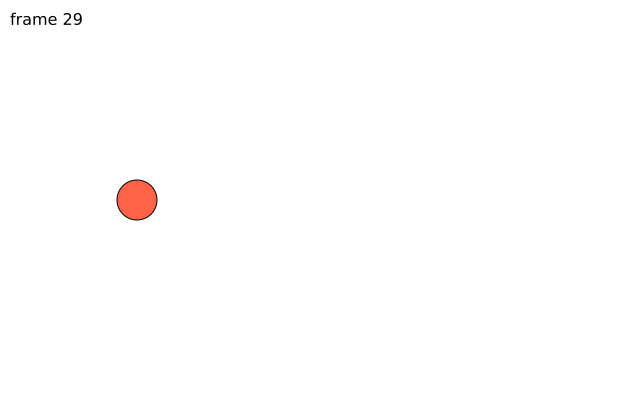
import funground as f

x = 50
speed = 3


def setup():
    f.size(640, 400)


def draw():
    global x, speed                  # draw() assigns to them, so Python needs this line

    f.background("white")            # clears the previous frame; leave it out for trails
    f.fill("tomato")
    f.circle(x, f.height / 2, 40)

    x += speed                       # a little each frame is motion
    if x > f.width - 20 or x < 20:   # bounce off the sides
        speed = -speed

    f.fill("black")
    f.text_size(16)
    f.text(f"frame {f.frame_count}", 10, 10)
    if f.frame_count > 1000:
        f.stop()                     # ask the loop to end after this draw()


f.run()
Why global x? x is created outside draw(). Because draw() assigns a new value to it,
Python requires global x inside the function.
Clear the old frame. Calling f.background(...) near the start of draw() clears the previous
frame. Leave it out if you intentionally want trails.
Useful animation values
| Value | What it is | Example |
|---|---|---|
f.frame_count |
Completed frames since the sketch started; 0 during the first draw(). |
f.rotate(f.frame_count * 3) |
f.delta_time |
Seconds taken by the previous frame (0.0 in the first). For time-based motion. | x += 120 * f.delta_time # ~120 px per second |
f.stop() |
Ask the main loop to stop. | if x > f.width: f.stop() |
f.run(max_frames=n) |
Stop automatically after n frames. |
f.run(max_frames=300) |
f.no_loop() / f.loop() / f.redraw() / f.is_looping() |
Stop drawing every frame (draw still runs once) / resume / draw once more / check. | f.no_loop() |
f.exit() |
End the sketch (same as f.stop()). |
f.exit() |
f.millis() / f.frame_rate() |
Milliseconds since start / frames per second achieved. | f.millis() |
f.second() f.minute() f.hour() f.day() f.month() f.year() |
The clock and date. | f.hour() |
Moving at the same speed on any computer. f.delta_time makes motion depend on time, not on
how many frames the computer manages:
import funground as f

x = 0


def setup():
    f.size(640, 400)


def draw():
    global x
    f.background("white")
    f.circle(x, f.height / 2, 40)
    x += 120 * f.delta_time          # 120 pixels per second, at 30 fps or 144 fps alike
    if x > f.width:
        x = 0


f.run()
Styles you set at the top of the file or in setup() persist; a style or transform changed inside a
with f.saved_state(): block (section 7) is undone at the end of the block.
5. Mouse, keyboard and useful helpers
Mouse values are updated automatically before each call to draw().
| Value | What it is | Example |
|---|---|---|
f.mouse_x |
Current mouse x-coordinate. | f.circle(f.mouse_x, f.mouse_y, 30) |
f.mouse_y |
Current mouse y-coordinate. | |
f.is_mouse_pressed |
True while any of the first three mouse buttons is held. |
if f.is_mouse_pressed: f.fill("tomato") |
f.pmouse_x, f.pmouse_y |
Where the mouse was in the previous frame. | f.line(f.pmouse_x, f.pmouse_y, f.mouse_x, f.mouse_y) |
f.mouse_button |
The last button pressed: "left", "center", "right" (or None). |
if f.mouse_button == "right": ... |
f.is_key_pressed |
True while any key is held. |
if f.is_key_pressed: ... |
f.key / f.key_code |
The last key: a character ("a", " ") or a name ("left", "enter") / its code. |
if f.key == "r": ... |
def mouse_pressed(): … |
Callbacks you define, called when input happens: mouse_pressed, mouse_released, mouse_clicked, mouse_moved, mouse_dragged, mouse_wheel(delta), key_pressed, key_released, key_typed. |
def key_pressed(): f.redraw() |
Keyboard. f.key_down(key) is True while a key is held. It recognises "left", "right",
"up", "down", "space", "enter", "escape" and single-character keys such as "a" or "7"
(case does not matter). Escape also closes the sketch; an unknown name is a ValueError.
| Call | What it does | Example |
|---|---|---|
f.key_down(key) |
Is this key held right now? | if f.key_down("left"): x -= 3 |
Controls. Sliders, checkboxes and buttons sit in a panel below the canvas, one row each, in the
order you made them. Make them in setup() (or at the top of the file), keep them in variables, and read
them in draw(). The panel is not part of the picture: it is not in f.width / f.height, f.mouse_y,
saves or f.get(), and clicks on it do not reach mouse_pressed() and friends. Making a control inside
draw(), or in a script (a file that ends with f.show()), is a RuntimeError. Without a window the
controls keep their values, and setting them still works.
| Call | What it does | Example |
|---|---|---|
f.create_slider(low, high, value=None, step=None, label=None) |
a slider from low to high; it starts at value (default low). With step, it moves in whole steps from low. low >= high or step <= 0 is a ValueError. |
size = f.create_slider(10, 100, 40, step=5, label="size") |
slider.value() / slider.value(v) |
Read the value / set it (kept between low and high, rounded to step). |
f.circle(200, 150, size.value()) |
f.create_checkbox(label, checked=False) |
a tick box. | grid = f.create_checkbox("grid") |
box.checked() / box.checked(True) |
Read / set. | if grid.checked(): draw_grid() |
f.create_button(label) |
a button. | reset = f.create_button("reset") |
button.clicked() |
True once for each click since it was last asked. |
if reset.clicked(): points.clear() |
control.visible() / control.visible(False) |
Read / hide or show any control. A hidden control is not drawn or clickable, keeps its value, and leaves its row blank. Works in draw(). |
size.visible(playing is False) |
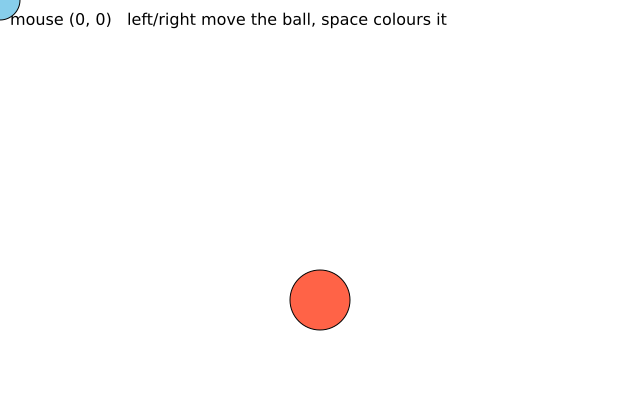
(The picture was made headless, so the mouse sits at (0, 0) and no key is down.)
import funground as f

x = 320


def setup():
    f.size(640, 400)


def draw():
    global x

    f.background("white")

    # Mouse: live values, read once before each draw().
    if f.is_mouse_pressed:
        f.fill("tomato")
    else:
        f.fill("skyblue")
    f.circle(f.mouse_x, f.mouse_y, 40)

    # Keyboard: key_down() is True while the key is held.
    if f.key_down("left"):
        x -= 3
    if f.key_down("right"):
        x += 3
    if f.key_down("space"):
        f.fill("gold")
    else:
        f.fill("tomato")
    f.circle(x, 300, 60)

    f.fill("black")
    f.text_size(16)
    f.text(f"mouse ({f.mouse_x}, {f.mouse_y})   left/right move the ball, space colours it", 10, 10)


f.run()
Math / utility helpers
| Call | What it does | Example |
|---|---|---|
f.random(high) |
Random floating-point number from 0 up to high. |
x = f.random(f.width) |
f.random(low, high) |
Random floating-point number between low and high. |
d = f.random(10, 40) |
f.random_seed(seed) |
make f.random() repeatable — the same seed gives the same sequence. Never touches Python's own random module. |
f.random_seed(7) |
f.constrain(value, low, high) |
Keep a value inside a minimum and maximum. | x = f.constrain(x, 20, f.width - 20) |
f.distance(x1, y1, x2, y2) |
Straight-line distance between two points. | d = f.distance(x, y, f.mouse_x, f.mouse_y) |
f.map_range(v, a1, b1, a2, b2, clamp=False) |
Re-scale v from one range to another. |
f.map_range(f.mouse_x, 0, f.width, 0, 255) |
f.lerp(a, b, t) / f.norm(v, a, b) |
Part of the way from a to b / where v sits between them (0–1). |
f.lerp(0, 100, 0.25) |
f.mag(x, y) |
Length of the arrow (x, y). | f.mag(3, 4) |
f.random_gaussian(mean=0, sd=1) |
Bell-curve random number. | f.random_gaussian(200, 30) |
f.random_choice(items) |
One item picked at random. | f.random_choice(["red", "gold"]) |
f.noise(x, y=0, z=0) |
Smooth random value 0–1; nearby inputs give nearby values. | f.noise(x * 0.01) |
f.noise_seed(n) |
Repeatable noise (same values as p5.js's noiseSeed). |
f.noise_seed(1) |
f.noise_detail(octaves, falloff=None) |
Layers of detail (default 4); fewer is smoother and faster. | f.noise_detail(2) |
f.Vector(x, y) |
An x and y kept together. v.add(w), v.mult(n), v.limit(n), v.normalize(), v.rotate(deg) change v, as in p5.js; v + w makes a new one. v.mag(), v.heading() (degrees), v.dist(w). |
velocity.add(gravity) |
f.radians(degrees) |
degrees → radians, for math.sin / math.cos. |
math.sin(f.radians(45)) |
f.degrees(radians) |
radians → degrees, e.g. to feed rotate(). |
f.rotate(f.degrees(math.atan2(dy, dx))) |
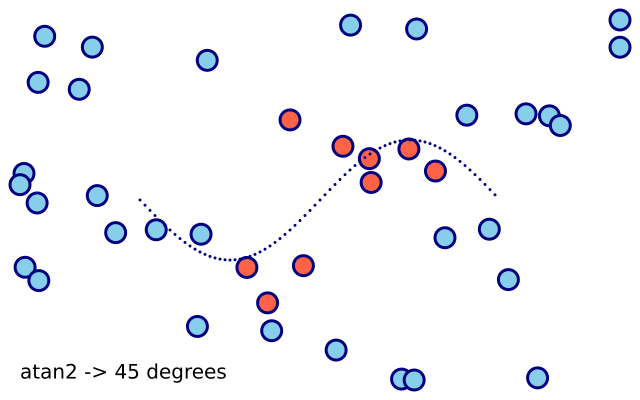
import math

import funground as f


def setup():
    f.size(640, 400)


def draw():
    f.background("white")
    f.random_seed(7)                 # same seed, same numbers: the dots stay put

    for _ in range(40):
        x = f.constrain(f.random(f.width), 20, f.width - 20)      # keep inside the window
        y = f.constrain(f.random(f.height), 20, f.height - 20)
        if f.distance(x, y, f.width / 2, f.height / 2) < 120:
            f.fill("tomato")
        else:
            f.fill("skyblue")
        f.circle(x, y, 20)

    # radians() and degrees() convert for math.sin / math.cos
    # (rotate() itself takes degrees, so they are only needed for trigonometry).
    f.stroke("navy")
    f.stroke_width(3)
    for deg in range(0, 360, 5):
        f.point(140 + deg, 200 + 60 * math.sin(f.radians(deg)))
    f.fill("black")
    f.text(f"atan2 -> {f.degrees(math.atan2(1, 1)):.0f} degrees", 20, 360)


f.run()
6. Saving a picture
| Call | What it does | Example |
|---|---|---|
f.save(path) |
Write the current frame to a file when the frame is complete. .png saves pixels; .pdf and .svg save a true vector drawing of the same frame. |
f.save("my_sketch.png") |
f.save(path, text="shapes") |
For a .pdf or .svg: text="live" (the start) keeps text real and editable; "shapes" draws every letter as a shape, so the file needs no font and cannot be edited. Applies to every page and layer. Anything else is a ValueError. PNG, GIF and MP4 ignore it. Save one copy of each: live to edit, shapes to hand over. |
f.save("poster_final.svg", text="shapes") |
picture.save(path, text="live") |
Write a picture (f.create_graphics() or a layer) to a file at once. The same text= choice as f.save. |
g.save("badge.svg", text="shapes") |
f.save_gif(path, seconds) |
animated sketch: record the next seconds (from the next frame) into a GIF that loops; each frame lasts 1 / frame rate. path must end in .gif. Needs Pillow (funground[extras]) or ffmpeg. Called while recording, or in a script: an error |
f.save_gif("spin.gif", 2) |
f.save_movie(path, seconds) |
the same, into an H.264 MP4 (.mp4). Needs ffmpeg on the PATH; odd sizes are padded by one pixel |
f.save_movie("spin.mp4", 2) |
f.frame_duration(seconds) |
script: how long this page and the pages after it are shown in a GIF or MP4; the start is 0.1; 0 or less is an error. f.save("x.gif") / f.save("x.mp4") then writes every page as a frame (all the same size) |
f.frame_duration(0.2) |
f.save_frames(pattern, count) |
save this frame and the next ones, count in all; #### in the name becomes 0001, 0002, … |
f.save_frames("frames/####.png", 60) |
f.resize_canvas(w, h) |
change the canvas size while running. | f.resize_canvas(800, 600) |
f.full_screen() |
fill the screen (instead of f.size); f.width/f.height become the screen size. In a script: the screen size, shown full screen by f.show(). |
f.full_screen() |
f.cursor(kind) / f.no_cursor() |
the mouse pointer: "arrow", "cross", "hand", "move", "text", "wait"; or hide it. |
f.cursor("hand") |
- Call it anywhere inside
draw(); the file holds everything that frame drew, including what comes after the call. Any other extension is aValueErrornaming the three choices. - A
.pngis written at the screen's real resolution (on a 2× display, a 640×400 window gives a 1280×800 file)..pdfand.svguse logical pixels as points. - Text in a PDF is real text: you can select, search and copy it. In an SVG it is live text you can
edit in Illustrator, Inkscape or a browser. It names its font, so install the font to see the same
look (funground's own fonts are in the
fontsfolder inside the package). The file also carries the letters it uses, for browsers. Erased text and text shadows are saved as shapes. - To save just one frame from a script:
if f.frame_count == 0: f.save("first.pdf"), or run withf.run(max_frames=1)andFUNGROUND_HEADLESS=1for no window at all.
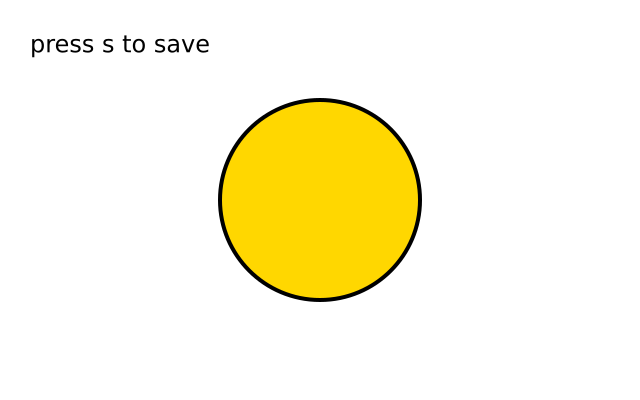
import funground as f


def setup():
    f.size(640, 400)


def draw():
    f.background("white")
    f.fill("gold")
    f.stroke("black")
    f.stroke_width(4)
    f.circle(320, 200, 200)
    f.fill("black")
    f.text_size(24)
    f.text("press s to save", 30, 30)

    # save() writes this frame once it is complete:
    # .png is pixels, .pdf and .svg are vector drawings of the same frame.
    if f.key_down("s"):
        f.save("my_sketch.png")
        f.save("my_sketch.pdf")


f.run()
7. Transforms and the state stack
A transform changes where — and how big, and how turned — everything drawn afterwards appears. Transforms add up, and they apply to shapes, text, paths and clips alike.
| Call | What it does | Example |
|---|---|---|
f.translate(dx, dy) |
Move the origin: everything drawn afterwards is shifted by (dx, dy). | f.translate(f.width / 2, f.height / 2) |
f.rotate(degrees) |
Turn later drawing about the current origin. Degrees; 90 is a quarter turn clockwise on screen. | f.rotate(45) |
f.scale(s) |
Grow (s > 1) or shrink (s < 1) later drawing about the origin. scale(0) is an error. |
f.scale(2) |
f.shear_x(degrees) / f.shear_y(degrees) |
Slant later drawing sideways / up and down. | f.shear_x(20) |
f.apply_matrix(a, b, c, d, e, f) |
Multiply in x' = a·x + c·y + e, y' = b·x + d·y + f. | f.apply_matrix(1, 0, 0.5, 1, 0, 0) |
f.reset_matrix() |
Forget all transforms until the enclosing pop(). |
f.reset_matrix() |
f.scale(sx, sy) |
Scale by different amounts sideways and up-and-down. | f.scale(2, 1) # stretch sideways |
f.push() |
Save the current transform and style (fill, stroke, stroke width, text size). | f.push() |
f.pop() |
Restore what the last push() saved — everything. |
f.pop() |
with f.saved_state(): |
push() on entry, pop() on exit, even if the block raises an error. |
with f.saved_state(): f.rotate(30); f.rect(0, 0, 80, 40) |
Rules worth knowing
- Order matters:
translate(100, 50)thenrotate(30)turns about (100, 50);rotate(30)thentranslate(100, 50)rotates the translation too. Think "move the paper, then draw". - The stack is reset at the start of every
draw(), so a transform never leaks into the next frame. A style set outside apush()persists as it always did. push()without a matchingpop()at the end ofdraw()is not an error: funground pops it for you and prints aFungroundWarningnaming the count. Apop()with nothing to pop warns and is ignored.f.background()ignores transforms and always fills the whole window.f.radians()andf.degrees()(section 5) convert when you needmath.sin/math.cos.
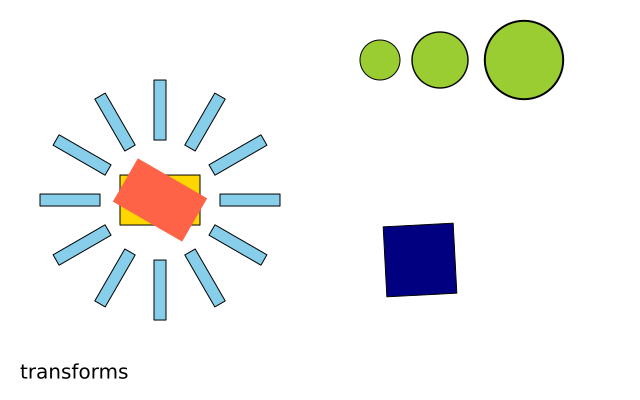
import funground as f


def setup():
    f.size(640, 400)


def draw():
    f.background("white")

    # translate() moves the origin: (0, 0) is now at (160, 200) on screen.
    f.translate(160, 200)
    f.fill("gold")
    f.stroke("black")
    f.rect(-40, -25, 80, 50)

    # push() remembers the transform AND the style; pop() brings both back.
    f.push()
    f.rotate(30)                     # degrees, clockwise on screen
    f.fill("tomato")
    f.no_stroke()
    f.rect(-40, -25, 80, 50)
    f.pop()                          # gold fill, black stroke, no rotation again

    # Transforms are cumulative: each rotate() adds to the one before.
    with f.saved_state():                  # push on entry, pop on exit, even after an error
        f.fill("skyblue")
        for _ in range(12):
            f.rect(60, -6, 60, 12)
            f.rotate(30)

    # scale() grows or shrinks later drawing; scale(2, 1) would stretch sideways.
    with f.saved_state():
        f.translate(220, -140)       # relative to the moved origin: (380, 60) on screen
        f.fill("yellowgreen")
        for _ in range(3):
            f.circle(0, 0, 40)
            f.translate(60, 0)
            f.scale(1.4)

    with f.saved_state():
        f.translate(260, 60)
        f.rotate(f.frame_count * 3)  # a little further every frame: it spins
        f.fill("navy")
        f.rect(-35, -35, 70, 70)

    # Every block above was undone, so this is placed from the origin set on line 11.
    f.text("transforms", -140, 160, "black")


f.run()
8. Shapes, paths and clipping
Two ways to draw your own outlines: list the corners one by one, or build a path object you can draw again and again.
Shapes from corners
| Call | What it does | Example |
|---|---|---|
f.begin_shape() |
Start a shape; list its corners next. | f.begin_shape() |
f.vertex(x, y) |
Add a corner (the first one starts the shape). | f.vertex(100, 20) |
f.bezier_vertex(cx1, cy1, cx2, cy2, x, y) |
Add a Bézier curve segment: two control points, then the end point. | f.bezier_vertex(20, 0, 180, 0, 180, 80) |
f.quadratic_vertex(cx, cy, x, y) |
Add a quadratic curve segment: one control point, then the end point. | f.quadratic_vertex(100, 0, 180, 80) |
f.curve_vertex(x, y) |
A point of a smooth curve through the points; the first and last only steer it (at least four in a row). | f.curve_vertex(40, 60) |
f.curve_tightness(t) |
0 smooth (default) … 1 straight lines, for curve_vertex/curve. |
f.curve_tightness(0.5) |
f.begin_contour() / f.end_contour() |
A hole inside the shape being built. | f.begin_contour(); …; f.end_contour() |
f.bezier(x1, y1, cx1, cy1, cx2, cy2, x2, y2) |
One Bézier curve (stroked only). | f.bezier(20, 80, 20, 0, 180, 0, 180, 80) |
f.curve(x1, y1, x2, y2, x3, y3, x4, y4) |
One smooth curve from point 2 to point 3 (stroked only). | f.curve(0, 100, 40, 40, 160, 40, 200, 100) |
f.bezier_point(a, b, c, d, t) / f.bezier_tangent(...) / f.curve_point(...) / f.curve_tangent(...) |
A coordinate (or slope) along a curve at t from 0 to 1; call once for x and once for y. |
x = f.bezier_point(20, 20, 180, 180, 0.5) |
f.end_shape() |
Draw the shape open: it is stroked, never filled. | f.end_shape() |
f.end_shape(close=True) |
Join the last corner to the first, then fill and stroke it. | f.end_shape(close=True) |
Reusable paths
| Call | What it does | Example |
|---|---|---|
f.path() |
A new, empty path builder. Chain the calls below; each returns the builder. | tri = f.path().move_to(0, 0).line_to(40, 0).line_to(20, -30).close() |
.move_to(x, y) |
Start a sub-path at (x, y) without drawing. Every path begins with one. | |
.line_to(x, y) |
Straight segment to (x, y). | |
.curve_to(cx1, cy1, cx2, cy2, x, y) |
Cubic Bézier: two control points, then the end point. | |
.quad_to(cx, cy, x, y) |
Quadratic Bézier: one control point, then the end point. | |
.close() |
Join back to where the sub-path started. Only closed paths are filled. | |
.rect(x, y, w, h, *radii) |
Add a closed rectangle; (x, y) is its top-left corner. Takes one or four corner radii like f.rect. Not changed by rect_mode. |
f.path().rect(10, 10, 80, 50, 8) |
.ellipse(x, y, w, h) |
Add a closed ellipse centred on (x, y), width w, height h. Not changed by ellipse_mode. |
f.path().ellipse(50, 50, 80, 40) |
.circle(x, y, d) |
Add a closed circle centred on (x, y), diameter d. |
f.path().circle(50, 50, 40) |
.polygon(points) |
Add a closed shape through a list of (x, y) corners (3 or more). |
f.path().polygon([(0, 0), (40, 0), (20, 30)]) |
a.union(b), a \| b |
a new path covering everything a or b covers. a and b are not changed. Only closed shapes count; each is read with the non-zero rule. |
both = ring \| star |
a.intersection(b), a & b |
a new path covering only what both cover. | lens = ring & star |
a.difference(b), a - b |
a new path covering what a covers, minus what b covers. |
bite = ring - star |
a.xor(b), a ^ b |
a new path covering what exactly one of them covers. | either = ring ^ star |
a.remove_overlap() |
a new path with the same area and one clean outline, no overlapping parts. | clean = crossing.remove_overlap() |
a.expand_stroke(width, cap="round", join="round", miter_limit=10, dash=None) |
a new closed path covering what a stroke of that width would paint. Cap and join names as stroke_cap and stroke_join; dash is a list as in stroke_dash. Open lines work too. Width 0 or less, or an unknown name, is an error. |
band = line.expand_stroke(12, dash=[20, 8]) |
a.bounds() |
(x, y, w, h) of the path's exact extent (curves measured tightly), or None if it is empty. |
x, y, w, h = shape.bounds() |
a.contains(x, y) |
True when the point is inside what the path fills (non-zero rule). |
shape.contains(mouse_x, mouse_y) |
a.translate(dx, dy) |
a new path moved by (dx, dy). |
shape.translate(50, 0) |
a.scale(sx, sy=None) |
a new path scaled about the origin; one number scales both ways. | shape.scale(2) |
a.rotate(degrees, cx=0, cy=0) |
a new path turned clockwise on screen about (cx, cy). |
shape.rotate(45, 100, 100) |
a.copy() |
An independent builder with the same path. | twin = shape.copy() |
f.draw_path(path) |
Fill (if closed) and stroke a path with the current style, under the current transform. | f.draw_path(tri) |
f.clip(path) |
Limit later drawing to the inside of path until the enclosing pop() / end of the with f.saved_state(): block. |
with f.saved_state(): f.clip(tri); ... |
f.no_clip() |
Remove clipping until the enclosing pop() / end of the block, which brings the previous clip back. |
with f.saved_state(): f.no_clip(); ... |
Marks
A mark is a drawing kept as a value: make it once, place it as often as you like. It stays sharp at any size, and stays real shapes and text in a saved PDF or SVG.
| Call | What it does | Example |
|---|---|---|
with f.mark() as m: |
record the drawing in the block instead of drawing it. Each part keeps the fill, stroke and font it was drawn with. The block starts with the current style and no transform, so (0, 0) is the mark's own origin. Afterwards the transform, style and clip are exactly as before, even after an error. In the block you cannot open a layer, make controls, save, or read or change pixels (RuntimeError). |
with f.mark() as flower: f.circle(0, 0, 24) |
f.mark(path, fill=..., stroke=..., stroke_width=...) |
a mark made from a path at once, with the current style changed by what you give. None means no fill or no stroke. |
leaf = f.mark(f.path().ellipse(0, 0, 40, 16), fill="olive", stroke=None) |
f.mark("file.svg") |
a mark of an SVG file's shapes, with the file's own colours. Its origin is the file's top-left corner. Found next to the sketch first, like f.load_svg. |
badge = f.mark("badge.svg") |
m.place(x, y) |
draw the mark now, its origin at (x, y). It follows the current transform and clip, works inside a layer block, and inside another mark's block (marks made of marks). |
flower.place(150, 200) |
m.place(x, y, scale=s, rotate=deg, opacity=a) |
moved to (x, y), then turned, then sized, around the anchor point. scale is one number or (sx, sy). opacity from 0 to 1 fades the whole mark as one piece. |
flower.place(400, 200, scale=0.5, rotate=15, opacity=0.6) |
m.place(x, y, anchor="center") |
which point lands on (x, y): "origin" (the default), or a point of the mark's bounds: "center", "top-left", "top", "top-right", "left", "right", "bottom-left", "bottom", "bottom-right". |
border.place(20, 390, anchor="bottom-left") |
m.place(x, y, width=w, height=h) |
size the mark from its bounds, keeping its shape. One of them: that width or height. Both: as large as fits inside the box, centred in it, and the anchor places the box. Not with scale. |
flower.place(cx, cy, anchor="center", width=60) |
m.place(x, y, style="current") |
draw every part with the style in force now instead of its own: fill and stroke (and their widths, caps, joins and dash) on shapes, the stroke on lines, the colour of text. Pictures keep theirs. | f.fill("black"); f.no_stroke(); flower.place(80, 80, style="current") |
m.bounds() |
(x, y, w, h) of what the mark paints, in its own coordinates, strokes and text included; never smaller than the ink. None for an empty mark. |
x, y, w, h = flower.bounds() |
m.width, m.height, m.is_empty |
the size of the bounds (0 when empty), and whether the mark paints nothing. | gap = flower.width + 10 |
A finished mark never changes, and placing it never changes it. For a variation, make a new mark, for
example in a function that returns one. Make marks in setup() (or at the top) and place them in
draw().
Play: exploring and keeping versions
| Call | What it does | Example |
|---|---|---|
f.variations(fn, name=[...]) |
call fn once for each value and draw the results side by side, each in a labelled cell over f.ground.content. One parameter: one row while every picture is at least 100 units wide and its label fits, otherwise a grid. Two parameters: rows for the first, columns for the second. Every cell has the same scale and the canvas's coordinates. Each version starts from the style at the call, no transform and the same random seed; background() in it paints only its cell. Returns a list of (values, mark) pairs; the labels are not in the marks. |
f.variations(study, gap=[10, 20, 35, 60]) |
f.variations(fn, columns=n, name=[...]) |
the same, with n columns (one parameter only). |
f.variations(study, columns=2, gap=[10, 20, 35, 60]) |
f.keep(note, pdf=False, **settings) |
save the picture in a studio folder next to the sketch, numbered 001, 002, …: a .png, a copy of the sketch (.py) and a record (.json) of the note, settings, controls, random and noise seeds, size, fonts and files read. pdf=True adds a .pdf. In a script it keeps the canvas now; in an animated sketch it keeps the next frame drawn, and the record is that frame's. |
f.keep("gap 35 reads as a rhythm", gap=35) |
A recorded seed makes funground's random() and noise() repeatable: f.random_seed(n) and f.noise_seed(n)
with the recorded numbers give the same values. It does not make every sketch reproducible: the mouse, the clock,
files and Python's own random are not covered.
Off-screen pictures
| Call | What it does | Example |
|---|---|---|
f.create_graphics(w, h) |
an off-screen picture, w x h, transparent to start. It has the same drawing commands as f. (fill, circle, text, transforms, clip, ...), but its own state, transform and pixels; nothing about it resets between frames. |
trail = f.create_graphics(200, 100) |
with f.layer(name): |
draw everything in the block on the layer called name, a see-through picture the size of the canvas, made the first time. Layers are put over the canvas in the order they were first made, and keep their drawing from frame to frame until f.background() or f.clear() is called inside them. Inside the block f.width, f.mouse_x, f.random() and the like keep their canvas meaning. Layers do not nest (RuntimeError). In a saved PDF or SVG each layer is a real, named layer (Acrobat, Illustrator, Inkscape) |
|
f.layer(name) |
the layer's picture, so with f.layer("sky") as sky: gives you sky for sky.get(), filters or sky.save() |
|
f.hide_layer(name) / f.show_layer(name) |
stop or start showing a layer; it keeps its drawing. A hidden layer is left out of the window, PNG and f.get(), but kept in a PDF or SVG, switched off. An unknown name is a ValueError |
|
f.image(picture, x, y, w=None, h=None, sx=None, sy=None, sw=None, sh=None) |
draw picture at (x, y), stretched to w x h (default: its own size), as it is at this moment. Give sx, sy, sw, sh (all four) to draw only that part of the picture, in its own pixels, into the box; a part reaching outside the picture is clipped and keeps its place. sw and sh must be above 0. |
f.image(trail, 0, 0), f.image(photo, 0, 0, 200, 150, 40, 30, 100, 75) |
f.tint(color) / f.no_tint() |
colour every picture drawn after it. Takes any colour form f.fill() takes (not a gradient). Red, green and blue of each pixel are multiplied by the tint's, and its alpha is multiplied in: f.tint(255, 128) draws pictures half see-through. Shapes and text are not tinted. Saved by push/pop. |
f.tint("gold") |
f.load_image(path) |
read an image file (PNG, JPEG, GIF, BMP, TGA) and return a picture; draw it with f.image(). A relative path is looked for next to the sketch file first, then in the current folder. Phone photos are turned the right way up; transparency is kept. pic.width and pic.height are the image's size in pixels. You can draw on it like any picture. |
photo = f.load_image("photo.jpg") |
f.load_svg(path) |
read an SVG file and return a picture of its shapes, so it stays sharp at any size and stays vector in a saved PDF or SVG. The size is the file's width and height (CSS units, 96 to the inch), or its viewBox. Reads paths, rect, circle, ellipse, line, polyline, polygon, groups, <use>, transforms, fill and stroke colours with opacity, stroke width, caps, joins, dashes and fill-rule. A gradient or pattern uses its first colour; <text>, images, filters, masks and animation are ignored. A relative path is looked for next to the sketch file first, then in the current folder. |
badge = f.load_svg("badge.svg") |
f.svg_paths(path) |
the shapes of an SVG file as a list of f.path() paths, one per shape, in the file's own coordinates. Use them for booleans, clips or your own colours. Missing file: FileNotFoundError; not an SVG file: ValueError. |
shapes = f.svg_paths("badge.svg") |
f.get(x, y) |
the colour at one pixel, as a colour object (.red, .green, .blue, .alpha), as drawn so far, this frame included. Outside the canvas: transparent black. x, y are rounded down. On a high-resolution screen it reads the top-left real pixel of a logical one. |
c = f.get(10, 20) |
f.get(x, y, w, h) |
a new picture copied from that rectangle of the canvas (parts outside are see-through). A picture has g.get(...) too. |
part = f.get(0, 0, 50, 50) |
f.set(x, y, color) |
make one pixel exactly that colour. Any colour form f.fill() takes. Ignores fill, stroke, transform, clip, tint, opacity and blend mode. Outside the canvas: nothing. A picture has g.set(...) too. |
f.set(10, 20, "red") |
f.load_pixels() |
copy the canvas into f.pixels. |
f.load_pixels() |
f.pixels |
a bytearray with red, green, blue, alpha (0 to 255, not premultiplied) for every pixel, row by row from the top left. The pixel at (x, y) starts at index (y * f.width + x) * 4. None before f.load_pixels(). Change the numbers in place; a Python loop over a whole 640 x 400 canvas takes seconds. |
f.pixels[(y * f.width + x) * 4] = 255 |
f.update_pixels() |
write f.pixels back onto the canvas, like a f.set() of every pixel. An error before f.load_pixels(). A picture has g.load_pixels(), g.pixels and g.update_pixels(). |
f.update_pixels() |
g.copy() |
a new picture with the same pixels and drawing history. Changing one never changes the other. | small = photo.copy() |
g.resize(w, h) |
change the picture to w x h pixels, in place, scaled smoothly. A 0 for one side keeps the shape; both 0, or a negative number, is an error. The drawing history is dropped. |
small.resize(100, 0) |
g.mask(other) |
multiply the picture's alpha by the alpha of picture other (scaled to this size first). The history is dropped. |
photo.mask(hole) |
f.filter(kind, value=None) |
change everything drawn so far, in place. Kinds: "threshold" (0 to 1, default 0.5), "gray", "opaque", "invert", "blur" (radius in pixels, default 1), "posterize" (2 to 255 levels, required), "erode", "dilate". Alpha is kept, except by "opaque". An unknown kind or a value out of range is a ValueError. A picture has g.filter(...) too. "posterize", "erode" and "dilate" are faster with pip install funground[extras]; the result is the same. |
f.filter("blur", 3) |
Rules worth knowing
- Shapes and paths use the fill and stroke in force when they are drawn: fill first, stroke on top, strokes centred. A shape or path that is not closed is only ever stroked; setting a fill is not an error.
- The fill rule is non-zero winding: a self-crossing outline such as a five-pointed star is filled right through its centre.
clip()treats its path as closed, follows the current transform, and is lifted bypop()— so put it insidewith f.saved_state():.f.background()ignores the clip.- Mistakes are caught where they happen:
vertex()orend_shape()withoutbegin_shape(),begin_shape()twice, orbezier_vertex()before the firstvertex()areRuntimeErrors, and a shape still open whendraw()ends is dropped with aFungroundWarning.
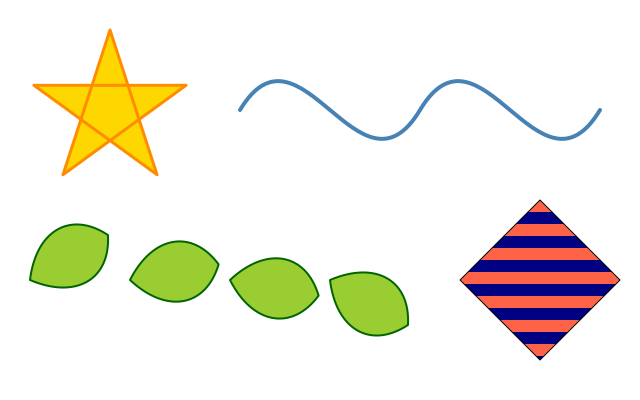
import math

import funground as f


def setup():
    f.size(640, 400)


def draw():
    f.background("white")

    # A shape from its corners: begin_shape(), a vertex() per corner, end_shape().
    # close=True joins the last corner to the first and fills the shape.
    f.fill("gold")
    f.stroke("darkorange")
    f.stroke_width(3)
    f.begin_shape()
    for i in range(5):
        a = f.radians(-90 + i * 144)           # a pentagram: every second corner
        f.vertex(110 + 80 * math.cos(a), 110 + 80 * math.sin(a))
    f.end_shape(close=True)                    # it crosses itself and is filled right through

    # An open shape is stroked, never filled. bezier_vertex() takes two control
    # points, then the point the curve ends at.
    f.no_fill()
    f.stroke("steelblue")
    f.stroke_width(4)
    f.begin_shape()
    f.vertex(240, 110)
    f.bezier_vertex(300, 10, 360, 210, 420, 110)
    f.bezier_vertex(480, 10, 540, 210, 600, 110)
    f.end_shape()

    # f.path() builds a reusable path: move_to, line_to, curve_to, quad_to, close.
    leaf = f.path().move_to(0, 0).curve_to(30, -40, 70, -40, 90, 0).curve_to(70, 40, 30, 40, 0, 0).close()
    f.fill("yellowgreen")
    f.stroke("darkgreen")
    f.stroke_width(2)
    for i in range(4):
        with f.saved_state():
            f.translate(30 + i * 100, 280)
            f.rotate(-30 + i * 20)
            f.draw_path(leaf)                  # filled (it is closed) then stroked

    # clip(path) limits later drawing to the inside of the path until the
    # enclosing pop() / the end of the with f.saved_state() block.
    window = f.path().move_to(540, 200).line_to(620, 280).line_to(540, 360).line_to(460, 280).close()
    with f.saved_state():
        f.clip(window)
        f.no_stroke()
        for i in range(14):
            f.fill("tomato" if i % 2 == 0 else "navy")
            f.rect(450, 200 + i * 12, 180, 12)  # wider than the window: cropped
    f.no_fill()
    f.stroke("black")
    f.stroke_width(1)
    f.draw_path(window)                        # the outline, once the clip is lifted


f.run()
Sound
| Call | What it does | Example |
|---|---|---|
f.load_sound(path) |
read a WAV, OGG or MP3 file and return a sound. A relative path is looked for next to the sketch file first, then in the current folder. With no sound device (or FUNGROUND_HEADLESS=1) it plays silently and keeps time. A missing file is a FileNotFoundError naming both places; a file that is not sound is a ValueError. |
beep = f.load_sound("beep.wav") |
sound.play() / sound.loop() |
play from the start (or from where pause() left it); loop() plays over and over. Playing a sound that is already playing starts it again. |
beep.play() |
sound.pause() / sound.stop() |
pause() stops and keeps the place; stop() stops and goes back to the start. |
beep.stop() |
sound.set_volume(v) |
the loudness, 0 (silent) to 1 (full). Outside that is a ValueError. |
beep.set_volume(0.5) |
sound.is_playing() / sound.duration() |
whether it is playing (false once a sound that is not looping reaches its end), and its length in seconds. | if beep.is_playing(): ... |
sound.current_time() / sound.get_volume() |
how many seconds into the sound it is now, and its volume from 0 to 1. | f.text(round(tune.current_time(), 1), 20, 20) |
sound.level() |
how loud the sound is now, 0 to 1 (the root mean square of the last 1/30 second). 0 when not playing. | f.circle(x, y, 20 + 80 * beep.level()) |
sound.spectrum(bands=32) |
a list of bands numbers from 0 to 1, low pitch to high, spaced evenly in pitch from 40 Hz to 16 kHz. A full-strength tone gives about 1 in its band. All zeros when not playing. bands must be 1 to 256. |
for i, v in enumerate(beep.spectrum(16)): ... |
f.create_sound(samples, rate=44100) |
make a sound from a list of numbers from -1 to 1 (one channel). Numbers outside are clipped. A list that is empty or not numbers is a ValueError. |
s = f.create_sound([math.sin(i / 9) for i in range(44100)]) |
sound.samples() |
the sound as a list of numbers from -1 to 1, mixed to one channel. Pan and volume are not in it. | wave = s.samples() |
f.tone(frequency, seconds, wave="sine", volume=0.5, attack=0.01, release=0.15, decay=0.15, sustain=0.7) |
make a steady tone. wave is "sine", "soft", "triangle", "square", "saw" or "noise"; all but noise are built from their overtones, so high notes stay clean. The envelope: rise over attack seconds, fall to the sustain level (0 to 1) over decay, hold, and fade out over the last release seconds, on smooth curves (attack and release made shorter if they do not fit). Half volume by default, so sounds can play together without clipping. Noise repeats after f.random_seed(). |
f.tone(440, 1, "square").play() |
f.note(name, seconds, ...) |
the same options, with a note name such as "A4" (440 Hz), "C#5" or "Bb3". |
f.note("C4", 2, attack=0.5, sustain=1).play() |
f.pluck(name_or_frequency, seconds, volume=0.5) |
a plucked string that dies away, with a soft, warm pluck. | f.pluck("E3", 2).play() |
f.melody(text, tempo=120, wave="soft", sa=None, tuning="equal", volume=0.5) |
a tune from text. Tokens are separated by spaces: a note name, - for a rest, [C4 E4 G4] for a chord, each with an optional :beats (1 if left off). tempo is beats a minute. Notes are legato: each fades out over 0.15 s while the next begins, so the sound lasts its beats plus 0.15 s when it ends on a note (a final rest of that long holds the fade). With sa="D4" the notes are sargam: S r R g G m M P d D n N, with ' for the octave above and , for the octave below. tuning="just" (needs sa) uses just-intonation ratios from Sa. A token it cannot read is a ValueError that names it. |
f.melody("C4 E4 G4:2 -", tempo=100).play() |
f.sequence(*sounds) / f.mix(*sounds) |
a new sound: the sounds one after another, or all together. mix leaves a quiet sum alone; a loud one goes through a soft limiter, so it never passes 0.9. |
f.mix(chord_a, chord_b) |
sound.reverb(amount=0.3) |
a new sound: this one in a room. amount from 0 (dry, the same sound) to 1 (a large hall); the room rings on after the end, adding up to 1.5 s. Outside 0 to 1 is a ValueError. |
f.pluck("G3", 2).reverb(0.5).play() |
sound.pan(p) |
move the sound between the speakers, from -1 (left) to 1 (right). 0 is the middle. Works on loaded sounds too. level() and spectrum() ignore it. |
s.pan(-0.5) |
sound.save(path) |
write the sound to a 16-bit WAV file, with the pan but not the volume. | s.save("tune.wav") |
sound.pitch() |
the frequency, in hertz, of the one voice playing now, or None when it is quiet, has no clear pitch, or is not playing. It looks at the last 2 048 samples, for 50 to 2000 Hz. For one voice or instrument, not chords. |
hz = s.pitch() |
sound.onsets() |
the times, in seconds, where a note or hit begins, for the whole sound (spectral flux with an adaptive threshold). Worked out once and remembered; a three-minute song takes a few seconds the first time. Clear for drums and plucked notes, weaker for smooth singing or bowed strings. | times = s.onsets() |
sound.tempo() / sound.beats() |
the speed in beats a minute (60 to 200), or None when there is no steady pulse; and the list of beat times, in seconds, at that tempo, lined up with the onsets (empty when there is no tempo). |
bpm = s.tempo() |
sound.is_onset() / mic.is_onset() |
True in the frame where a new note or hit is heard (it looks at the last 0.3 second). False when not playing or listening. For flashing a light on each note. |
if s.is_onset(): flash = 1 |
sound.chroma() / mic.chroma() |
twelve numbers from 0 to 1: how strong each note name (C, C#, D ... B) is now, whatever the octave. The strongest is 1. Twelve zeros when quiet, not playing or not listening. | bars = s.chroma() |
sound.chord() / mic.chord() |
the chord sounding now: a note then nothing, m, dim, aug, 7, maj7 or m7 ("C", "Am", "Bdim", "G7", "Fmaj7"), or None when no chord stands out. One note is None. For clear piano, guitar or synth chords. |
name = s.chord() |
sound.key() |
the key of the whole sound, "G major" or "E minor", or None. A microphone has no key(), onsets(), tempo() or beats(): use mic.capture(seconds) first. |
k = tune.key() |
f.chord_notes(name) |
the note names in a chord, with sharps: f.chord_notes("C") is ["C", "E", "G"]. A flat root such as "Bb" is allowed. A name it does not know is a ValueError. |
f.chord_notes("Am") |
f.microphone(name=None) / f.microphones() |
a microphone for the default input, or the one with name in its name; f.microphones() lists the names. No input, or access refused, is a RuntimeError (on a Mac: allow microphone access in System Settings). With FUNGROUND_HEADLESS=1 it is silent. Never played back. |
mic = f.microphone() |
mic.start() / mic.stop() / mic.is_listening() |
start and stop listening, and ask. start() forgets earlier sound; stop() keeps it. |
mic.start() |
mic.level() / mic.spectrum(bands=32) / mic.pitch() |
the same as on a sound, for the sound heard most recently. 0, zeros and None when not listening. |
hz = mic.pitch() |
mic.capture(seconds) |
a new sound of the last seconds heard (more than 0, at most 10; else ValueError). Its start is silence if less was heard. |
take = mic.capture(2) |
f.draw_wave(source, x, y, w, h) |
draw a wave in the box x, y, w, h, with the current fill, stroke and transform. source is a sound (the whole sound, with a line showing where it is while it plays), a microphone (the last half second) or a list of numbers. A sound's shape is worked out once for each width, so it is quick. |
f.draw_wave(song, 20, 20, 400, 80) |
f.draw_spectrum(source, x, y, w, h, bands=32) |
bars for source.spectrum(bands) as it is now, standing on the bottom of the box, in the current style. |
f.draw_spectrum(mic, 20, 120, 400, 80) |
f.spectrogram(sound, width, height) |
a picture of the whole sound: time across, pitch up (40 Hz to 16 kHz, spaced like notes), louder is brighter. The brightest colour is the current fill. Make it once (about a second for 10 seconds at 400 by 200), then draw it with f.image() or save it. |
pic = f.spectrogram(song, 400, 200) |
f.draw_pitch_line(source, x, y, w, h, seconds=5, low="C3", high="C6", sa=None) |
the pitch of source over the last seconds as a line that scrolls left, from low (bottom) to high (top), with faint labelled guide lines for the notes, or for the swaras when sa is given. It gaps where pitch() is None. Call it once in every frame. |
f.draw_pitch_line(mic, 20, 20, 400, 150) |
f.note_to_frequency(name, sa=None) / f.frequency_to_note(hz, sa=None) |
note name to hertz and back (the nearest note, with sharps: "A#4"). With sa, the name is a swara such as "G" or "N,". |
f.frequency_to_note(f.note_to_frequency("A4")) |
The place in the sound follows the sketch's clock, not the speakers, so these give the same answers with or without a sound device. Sounds add nothing to the picture, to saved files or to the IR.
Ragas and talas
See guide chapter 17. The table's facts are checked against published sources, cited in each entry's sources.
| Call | What it does | Example |
|---|---|---|
f.ragas() / f.raga(name) |
the names in the built-in raga table (13 Hindustani ragas), and one raga, any capitals. It has name, thaat, swaras, aroha, avaroha and pakad (sargam strings for melody(sa=...)), vadi, samvadi, time, notes and sources; read-only. An unknown name is a ValueError listing the table. |
f.melody(f.raga("Yaman").aroha, sa="D4") |
f.talas() / f.tala_info(name) |
the six talas (Teentaal, Ektaal, Jhaptaal, Rupak, Dadra, Keherwa), and one of them: beats, vibhag (group sizes), tali and khali (beat numbers from 1), sam (1), bols (the theka, one bol a beat), notes, sources. |
f.tala_info("Rupak").khali |
f.tala(name, tempo=80, cycles=1) |
the theka played with simple drum sounds, the sam louder and the khali vibhag softer; exactly beats * 60 / tempo * cycles seconds long. |
f.tala("Teentaal", tempo=100).loop() |
f.drone(sa, seconds, pattern="P S' S' S", volume=0.5) |
a tanpura-like drone: plucked strings, tuned just from sa (a note name or hertz), played in turn and ringing on. pattern may start with m or N instead. Loops without a gap. volume is its loudest point. reverb() makes it warmer. |
f.drone("D3", 8).loop() |
meend S~G, kan (R)G in f.melody |
S~G glides from S to G over the token's beats; (R)G touches R for about 60 ms, then plays G. Both work with note names too. |
f.melody("S (R)G:2 G~S:2", sa="D4") |
x.tonic() |
on a sound (all of it) or a microphone (its last 10 seconds): a guess at Sa in hertz, or None. A heuristic: the pitch class that best explains a strong Sa and Pa. |
sa = song.tonic() |
x.swara_histogram(sa) |
12 numbers for S r R g G m M P d D n N above sa: the share of the pitched time on each, any octave, within 50 cents. They add up to 1. |
h = song.swara_histogram("C#4") |
f.match_ragas(histogram) |
the table's ragas ranked by how well their swaras fit, as (name, score) pairs, best first, scores 0 to 1. Compares note sets only: ragas with the same swaras (Bhupali and Deshkar) score almost the same. |
f.match_ragas(h)[0] |
9. One-page cheat sheet
The public student-facing API. Everything is reached as f.<name>.
| SETUP / RUN | |
|---|---|
f.size(w, h) |
Create/resize window. |
f.size(w, h, title="...") |
Window title. |
f.size(w, h, fps=60) |
Target frame rate. |
f.run() |
Run setup() once, then draw() repeatedly. |
f.run(fps=30) / f.run(max_frames=n) |
Frame rate; stop after n frames. |
f.stop() |
Stop the sketch loop. |
f.save("file.png") |
Save this frame: .png, .pdf or .svg. |
| DRAWING | |
|---|---|
f.background(color) |
Clear/fill the whole window. |
f.circle(x, y, d) |
Centred circle (diameter). |
f.ellipse(x, y, w, h) |
Centred ellipse. |
f.rect(x, y, w, h) |
Top-left rectangle. Add a radius (or four) to round the corners. |
f.rect_mode(m), f.ellipse_mode(m), f.image_mode(m) |
Place by corner, corners, centre or radius. |
f.line(x1, y1, x2, y2) |
Line. |
f.point(x, y) |
Dot in the stroke colour. |
f.square(x, y, s) / f.triangle(...) / f.quad(...) / f.polygon(points) |
More shapes. |
f.arc(x, y, w, h, start, stop, mode) |
Part of an ellipse (degrees, clockwise). |
f.clear() |
Transparent canvas. |
f.text(msg, x, y) / f.text(msg, x, y, color=...) |
Draw text, top-left at (x, y). |
| STYLE | |
|---|---|
f.fill(color) / f.no_fill() |
Set / disable fill. |
f.stroke(color) / f.no_stroke() |
Set / disable line and outline colour. |
f.stroke_width(n) |
Stroke thickness (centred on the edge). |
f.stroke_cap/stroke_join/stroke_dash/no_dash |
Line ends, corners, dashes. |
f.no_smooth() / f.smooth() |
Pixel-sharp / smooth edges. |
f.text_size(n) |
Text size: an n-pixel em. |
f.text_width(msg) |
Width the text will take, in pixels. |
| TRANSFORMS AND STATE | |
|---|---|
f.translate(dx, dy) |
Move the origin. |
f.rotate(degrees) |
Turn later drawing (clockwise). |
f.scale(s) / f.scale(sx, sy) |
Grow or shrink later drawing. |
f.push() / f.pop() |
Save / restore transform and style. |
with f.saved_state(): |
push on entry, pop on exit. |
| SHAPES, PATHS, CLIPPING | |
|---|---|
f.begin_shape() … f.vertex(x, y) … f.end_shape(close=False) |
A shape from its corners; close=True fills it. |
f.bezier_vertex(...) / f.quadratic_vertex(...) / f.curve_vertex(x, y) |
Curves inside a shape; begin_contour/end_contour for holes. |
f.bezier(...) / f.curve(...) |
One curve in a call. |
f.path() |
Builder: .move_to .line_to .curve_to .quad_to .close. |
f.draw_path(path) |
Fill (if closed) and stroke a path. |
f.clip(path) |
Draw only inside path until the enclosing pop(). |
f.no_clip() |
Stop clipping until the enclosing pop(). |
| LIVE VALUES | |
|---|---|
f.width / f.height |
Window dimensions. |
f.mouse_x / f.mouse_y |
Mouse position. |
f.is_mouse_pressed / f.is_key_pressed |
Any mouse button / key held. |
f.pmouse_x f.pmouse_y f.mouse_button f.key f.key_code |
Previous mouse, last button, last key. |
def mouse_pressed(): etc. |
Input callbacks (see section 5). |
f.frame_count |
Frames completed. |
f.delta_time |
Seconds for previous frame. |
| INPUT | |
|---|---|
f.key_down("left") |
Named key held? |
f.key_down("a") |
Single-character key held? |
| HELPERS | |
|---|---|
f.random(high) / f.random(low, high) |
Random float. |
f.random_seed(seed) |
Repeatable f.random(). |
f.constrain(v, lo, hi) |
Clamp value to range. |
f.distance(x1, y1, x2, y2) |
Distance between points. |
f.radians(deg) / f.degrees(rad) |
Angle conversion for math. |
| COLOUR FORMS | |
|---|---|
"tomato" |
Named colour (appendix). |
(255, 80, 70) / (255, 80, 70, 128) |
RGB / RGBA tuple, 0–255. |
"#FF5046" / "#FF504680" |
Hex string, with or without alpha. |
| CALLBACKS | |
|---|---|
setup() |
Optional; called once. |
draw() |
Required; called repeatedly. |
update() |
Not provided. |
| METADATA | |
|---|---|
f.__version__ |
"0.1.0.dev0". |
Remember: use f. before funground functions and live values: f.circle(...), f.width,
f.mouse_x, f.run(). Python variables such as x remain ordinary Python variables.
10. Named colours and other fixed names
For students the three most useful colour forms are a named string, an RGB tuple and a #RRGGBB
hex string.
f.fill("tomato")              # named colour
f.fill((255, 99, 71))         # RGB
f.fill("#FF6347")             # HEX
Named colours. funground bundles the pygame-ce colour-name table, so every name in the v0.5
appendix still works and renders the same on every platform and renderer. Capitals and spaces are ignored
("Tomato", "light blue" work), though the appendix shows the lowercase spelling. The appendix — colours grouped by visual family with their RGB and HEX equivalents — is
unchanged; see pages 8–19 of the v0.5 Quick Reference
(Playground_v0.5_Quick_Reference_Color_Organized.pdf).
Other colour values accepted
| Form | Meaning |
|---|---|
(R, G, B) |
Three integers 0–255. |
(R, G, B, A) |
RGBA; A is the opacity, 0 (invisible) to 255 (solid). Honoured (Playground 0.5 dropped it). |
[R, G, B] / [R, G, B, A] |
Lists work too. |
N / N, A / (N, A) |
One number is a grey; two are a grey and its opacity. Read on the colour mode's third range and opacity range. f.fill(128, 100) |
f.fill(R, G, B) / f.fill(R, G, B, A) |
fill, stroke and background also take the numbers as separate arguments, exactly like one tuple. A name, hex string, colour or gradient is one argument only: f.fill("red", 100) is an error. |
"#RRGGBB" / "#RRGGBBAA" |
HTML-style hex, with or without alpha. |
"0xRRGGBB" / "0xRRGGBBAA" |
Alternative hex string form. |
Constants and live values. There are no uppercase constants such as RED, LEFT or CENTER.
Colours and keys are strings. These module values are live state, not constants: f.width,
f.height, f.mouse_x, f.mouse_y, f.is_mouse_pressed, f.pmouse_x, f.pmouse_y, f.mouse_button, f.key, f.key_code, f.is_key_pressed, f.frame_count, f.delta_time.
f.__version__ reports "0.1.0.dev0".
Fixed key-name strings. f.key_down(...) recognises "left", "right", "up", "down",
"space", "enter", "escape", and any single-character key such as "a" or "7".
Font. Text is set in DejaVu Sans, which ships inside funground, unless you load a font of your own
with f.load_font() and f.text_font().
Warnings. funground never stops a lesson for an unbalanced push() or an unfinished shape: it
repairs the frame and prints a FungroundWarning that says what it did.
What changed since v0.5
| Area | Playground 0.5 | funground 0.1 |
|---|---|---|
| Version | f.__version__ == "0.5.0" |
"0.1.0.dev0" |
| Edges | Coordinates rounded to whole pixels | Fractional coordinates honoured; edges anti-aliased |
| Alpha | Fourth colour value silently dropped | Honoured: translucent fills and strokes |
| Strokes | Painted inside the shape's edge | Centred on the edge |
| Text | pygame's default font; text_size(20) ≈ 13-pixel capitals |
DejaVu Sans on every platform; text_size(n) is an n-pixel em; text_width() |
| Running | — | f.run(max_frames=n); FUNGROUND_HEADLESS=1 runs without a window |
| Random | — | f.random_seed(seed) |
| Saving | — | f.save() to PNG, PDF or SVG |
| Transforms | — | translate, rotate (degrees), scale, push/pop, with f.saved_state():, radians/degrees |
| Shapes | — | square, triangle, quad, polygon, arc, clear; begin_shape/vertex/bezier_vertex/quadratic_vertex/curve_vertex/contours/end_shape, bezier, curve, f.path(), draw_path, clip, no_clip |
| Off-screen graphics | — | create_graphics, layer, hide_layer, show_layer, image, load_image, load_svg, svg_paths |
| Sound | — | load_sound, create_sound, tone, note, pluck, melody, sequence, mix, note_to_frequency, frequency_to_note; play, loop, stop, pause, set_volume, is_playing, duration, current_time, get_volume, level, spectrum, samples, pan, save, pitch, reverb on the sound; microphone, microphones; start, stop, is_listening, capture, level, spectrum, pitch on a microphone; ragas, raga, talas, tala_info, tala, drone, match_ragas; meend and kan in melody; tonic, swara_histogram on a sound or microphone; draw_wave, draw_spectrum, spectrogram, draw_pitch_line |
| Controls | — | create_slider, create_checkbox, create_button, in a panel below the canvas |
| High-DPI | Window bitmap-stretched (blurry) | Drawn crisply at the screen's resolution; coordinates unchanged |
Everything a v0.5 sketch called still exists with the same arguments; the only visible differences are the softer edges, centred strokes, honoured alpha and larger text listed above.