6. Text
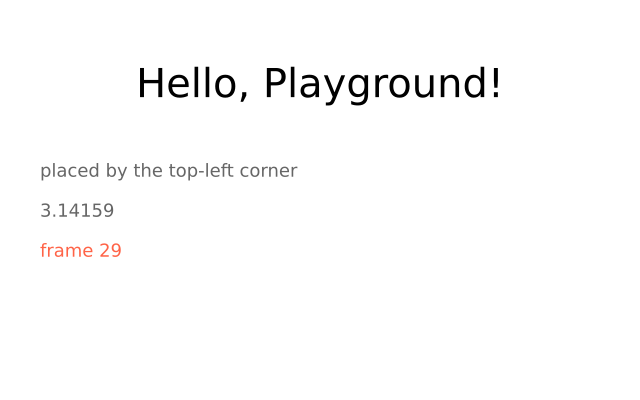
import funground as f


def setup():
    f.size(640, 400)


def draw():
    f.background("white")
    f.fill("black")
    f.text_size(40)
    message = "Hello, funground!"
    x = (f.width - f.text_width(message)) / 2      # centred
    f.text(message, x, 60)
    f.text_size(18)
    f.text(f"frame {f.frame_count}", 40, 240, color="tomato")


f.run()
| Function | What it does |
|---|---|
f.text(message, x, y) |
Draws message with its top-left corner at (x, y). Numbers and other values are turned into text. |
f.text(..., color=...) |
A colour for this text only; otherwise the fill colour is used (or the stroke if there is no fill). |
f.text_size(n) |
The size of later text, in pixels. |
f.text_width(message) |
How wide message will be at the current size — use it to centre or right-align text. |
funground draws text with its own built-in font (DejaVu Sans), so text looks the same on every computer. Letters from many alphabets work, including Greek and Cyrillic.
Lining text up
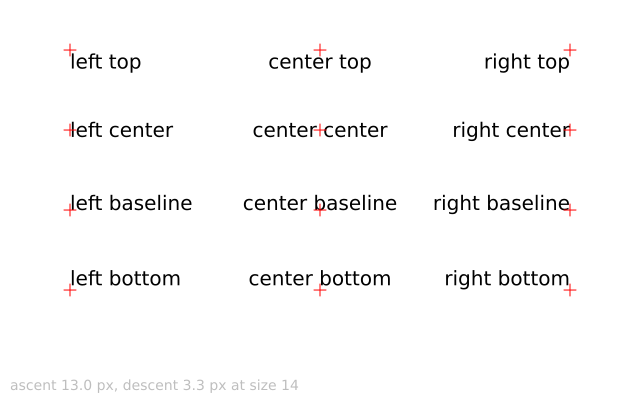
f.text_align() says which point of the text your (x, y) is. The first word is "left",
"center" or "right"; the second is "top", "center", "baseline" or "bottom". The
default is left and top, so without text_align the (x, y) is the top-left corner.
import funground as f


def setup():
    f.size(640, 200)


def draw():
    f.background("white")
    f.fill("black")
    f.text_size(36)
    f.text_align("center", "center")
    f.text(f"frame {f.frame_count}", f.width / 2, f.height / 2)   # stays centred as it changes


f.run()
| Function | What it does |
|---|---|
f.text_align(horizontal, vertical) |
Which point of the text (x, y) is. Leave out vertical to keep the current one. |
f.text_ascent() |
How far letters reach above the baseline, the line letters sit on. |
f.text_descent() |
How far letters such as g and y hang below the baseline. |
The alignment is part of the drawing state, so with f.saved_state(): restores it.
Several lines and text boxes
A "\n" inside the message starts a new line. f.text_leading(n) sets the distance from one
line to the next; f.text_leading(None) goes back to the automatic 1.25 × the text size.
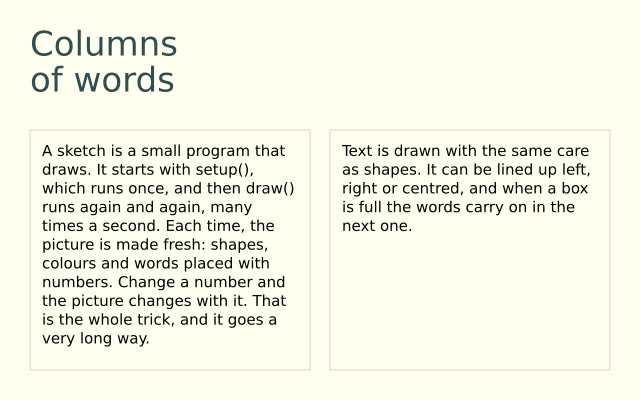
For longer text, f.text_box(message, x, y, width, height) wraps the words inside a box. It
returns the text that did not fit, so you can pour the rest into another box, the way
DrawBot's textBox() works:
rest = f.text_box(story, 40, 140, 260, 220)     # first column
rest = f.text_box(rest, 340, 140, 260, 220)     # the rest carries on here
f.text_align() works inside the box: "center" centres each line in the box's width, and
"bottom" sits the text on the box's bottom edge.
| Function | What it does |
|---|---|
f.text_leading(n) |
Distance between lines, in pixels. None means automatic. |
f.text_box(message, x, y, width, height) |
Wraps message inside the box and returns what did not fit. Leave out height for a box that grows downwards. |
Fonts and styles
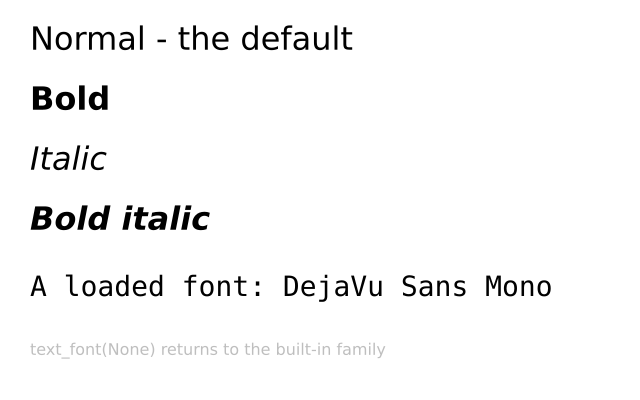
Every example so far has used funground's built-in font, DejaVu Sans, which is why text looks
the same on every computer. f.text_style(style) picks one of its four real styles: "normal"
(the default), "bold", "italic", or "bold_italic".
If you want a font of your own, f.load_font(path) reads a .ttf or .otf file from disk and
gives you back a font. A relative path is looked for next to your sketch file first, then in the
current folder. f.text_font(font) switches later text to use it; f.text_font(None) goes back
to the built-in family, remembering whichever style you last chose with f.text_style(). While a
loaded font is in use, f.text_style() has no effect — load the bold or italic file itself
instead, the way you would with any font on your computer.
import funground as f


def setup():
    f.size(640, 200)


def draw():
    f.background("white")
    f.fill("black")
    f.text_size(28)
    f.text_style("bold")
    f.text("Bold, built in", 30, 30)
    f.text_style("italic")
    f.text("Italic, built in", 30, 80)
    f.text_style("normal")               # back to the default built-in style
    f.text("Normal again", 30, 130)


f.run()
Loading a font of your own looks like this:
mono = f.load_font("fonts/DejaVuSansMono.ttf")
f.text_font(mono)
f.text("Now in a loaded font", 30, 30)
f.text_font(None)                        # back to the built-in family
f.text_font(font, size=n) sets the text size at the same time, so you don't need a separate
call to f.text_size().
| Function | What it does |
|---|---|
f.text_style(style) |
Choose one of the built-in family's four styles. |
f.load_font(path) |
Load a font file; pass the result to f.text_font(). |
f.text_font(font, size=None) |
Use a loaded font (or a path, or None for the built-in family) for later text. |
The font and the style are part of the drawing state, so with f.saved_state(): restores them,
exactly like f.fill() or f.text_size().
When you save a PDF, its text is real text: you can select it, search it and copy it in a PDF viewer. The PDF carries the letters of each font it uses, so it looks the same on any computer. Some fonts say they must not be put inside a file. Text in such a font is saved as letter shapes, so it looks right but cannot be selected. SVG files always save text as letter shapes.
Spacing, ligatures and variable fonts
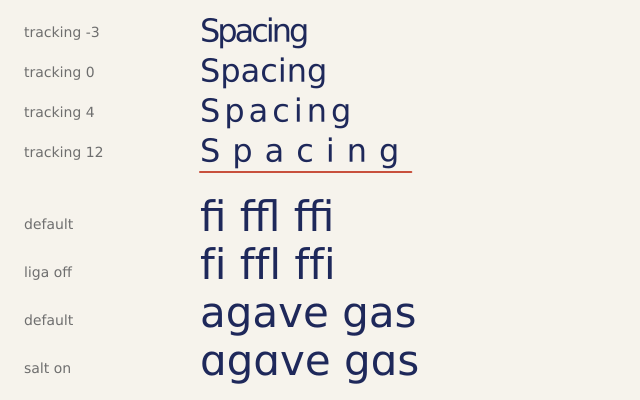
f.text_tracking(pixels) adds space after every letter. A negative number pulls the letters
together. It is part of the text, so f.text_width(), f.text_align() and f.text_box() all
count it. The last letter gets the space too.
import funground as f


def setup():
    f.size(640, 240)


def draw():
    f.background("white")
    f.fill("black")
    f.text_size(32)
    for i, tracking in enumerate([-2, 0, 6, 14]):
        f.text_tracking(tracking)
        f.text("Spacing", 30, 20 + i * 50)
    f.text_tracking(0)                      # back to normal
    f.text_features(liga=False)             # no ligatures
    f.text("office", 330, 20)
    f.text_features()                       # the font's own choices again
    f.text("office", 330, 70)


f.run()
Fonts have extra skills called OpenType features. Each has a four-letter name.
f.text_features(liga=False) turns the liga feature off. It joins letters such as f, f and i
into one shape. True turns a feature on. Each call adds to the ones you set before, and
f.text_features() with nothing in the brackets goes back to the font's own choices. DejaVu Sans
has liga, salt (alternate letters), dlig, hlig, case and a few more. A feature that
the font lacks does nothing.
A variable font has axes you can slide, like weight. f.font_variations(wght=700) sets the
wght axis. The letters and their spacing both change. An axis the font does not have is
ignored, and so is f.font_variations() on a font that is not variable (the built-in font is not),
so it is safe to leave in. With no arguments it goes back to the font's defaults.
font = f.load_font("fonts/MyVariableFont.ttf")      # a variable font of your own
f.text_font(font, 48)
f.font_variations(wght=300)
f.text("Light", 30, 30)
f.font_variations(wght=800, wdth=75)                # two axes at once
f.text("Heavy and narrow", 30, 100)
All three settings are part of the drawing state, so with f.saved_state(): restores them.
They also change f.text_path(), and a picture from f.create_graphics() has its own.
| Function | What it does |
|---|---|
f.text_tracking(pixels) |
Add this much space after every letter; negative tightens. Default 0. |
f.text_features(**features) |
Turn OpenType features on or off by name, like liga=False. No arguments: the font's defaults. |
f.font_variations(**axes) |
Set a variable font's axes by name, like wght=700. No arguments: the font's defaults. |
Mixed styles in one text
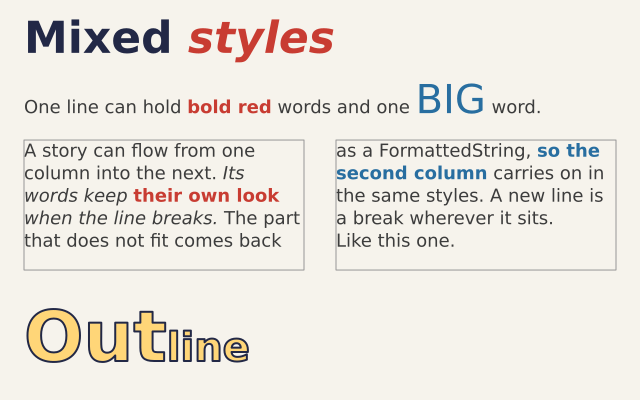
Sometimes one line needs more than one look: a bold word, a red word, a big word. A
f.FormattedString() holds the text in runs. Each append() adds a run, and it can have its own
size, style, color, font, tracking, features and variations. A setting you leave
out is not remembered. It follows the drawing state at the moment you draw the text.
import funground as f

line = f.FormattedString()
line.append("Plain, ")
line.append("bold red", style="bold", color="red")
line.append(" and ")
line.append("BIG", size=48)
line.append(" in one line.")


def setup():
    f.size(640, 160)


def draw():
    f.background("white")
    f.fill("black")
    f.text_size(22)                 # the plain runs use this size and colour
    f.text(line, 20, 30)
    f.text_box(line + " It wraps across the runs too.", 20, 90, 300, 60)


f.run()
append() gives the same FormattedString back, so you can chain calls. str(line) is the plain
text, len(line) is its length, and line + other joins two. A colour is read in the colour mode
at the moment of append().
f.text(fs, x, y) and f.text_box(fs, x, y, w, h) work like they do for a string, with the
current f.text_align() and f.text_leading(). The runs on a line sit on one baseline. A line is
as tall as its tallest run: with the automatic leading, that is 1.25 times the largest size on the
line. A "\n" in any run starts a new line, and f.text_box() breaks lines at spaces, even from
one run to the next, measuring each run with its own settings.
f.text_box() returns what did not fit as a FormattedString, and its runs keep their settings,
so the next box carries on in the same styles. f.text_width(fs) and f.text_path(fs, x, y)
take one too, and so does a picture from f.create_graphics(). A plain string works everywhere
as before.
| Function | What it does |
|---|---|
f.FormattedString() |
An empty formatted text. |
fs.append(text, font=None, size=None, style=None, color=None, tracking=None, features=None, variations=None) |
Add a run with the settings you give. Returns fs. features and variations are dicts, like {"liga": False}. |
str(fs), len(fs), fs + other |
The plain text, its length, and two joined. |
Letters as shapes
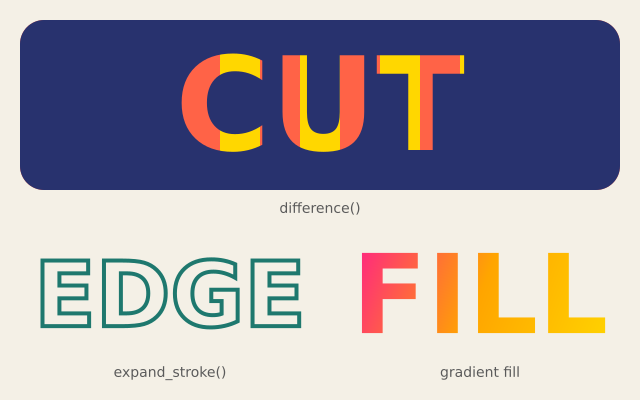
f.text_path(message, x, y) gives you the outlines of the letters as a path. It sets the text
exactly as f.text() would: the same font, style, size, alignment and lines. But it draws nothing.
You get a shape, and you choose what to do with it.
import funground as f


def setup():
    f.size(400, 200)


def draw():
    f.background("white")
    f.text_style("bold")
    f.text_size(100)
    f.text_align("center", "center")
    word = f.text_path("CUT", 200, 100)

    panel = f.path().rect(20, 20, 360, 160)
    f.fill("navy")
    f.draw_path(panel.difference(word))      # the letters are holes in the panel


f.run()
The path has no colour. You pick one when you draw it, and it can be a gradient. Because it is
a path, everything from chapter 9 works on it: difference(), expand_stroke(), f.clip() and
translate(). The path is not moved by f.translate() or f.rotate() until you draw it, like
any other path.
| Function | What it does |
|---|---|
f.text_path(message, x, y) |
The outlines of f.text(message, x, y) as a new path. An empty message gives an empty path. |
Text as points
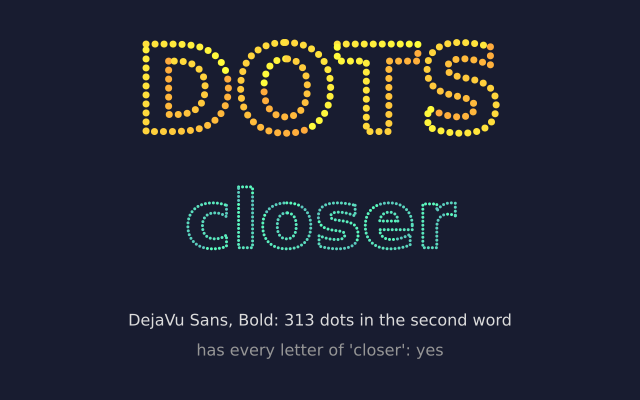
f.text_to_points(message, x, y, spacing=5) walks along the outlines of the letters and gives you
a list of (x, y) points, one every spacing pixels. It follows f.text_path(), so the points
sit exactly on the letters you would see: the same font, style, size, alignment and lines. It draws
nothing. You decide what to draw at each point.
import funground as f


def setup():
    f.size(400, 200)


def draw():
    f.background(20, 24, 40)
    f.text_style("bold")
    f.text_size(110)
    f.text_align("center", "center")
    f.no_stroke()
    f.fill("gold")
    for x, y in f.text_to_points("beads", 200, 100, 8):
        f.circle(x, y, 5)


f.run()
A smaller spacing gives more points. Each outline starts at its own first point, and the
distance is measured along curves too. The spacing must be above 0. An empty message gives [].
Asking the font
f.current_font() gives you the font your text is set in now. It works for the built-in font and
for a font you loaded with f.load_font(). You can ask it questions. Asking never changes anything.
import funground as f


def setup():
    f.size(400, 120)


def draw():
    f.background("white")
    font = f.current_font()
    f.fill("black")
    f.text_size(16)
    f.text(font.family() + ", " + font.style(), 20, 20)
    f.text("liga: " + str("liga" in font.features()), 20, 50)
    f.text("has an 'x': " + str(font.contains("x")), 20, 80)


f.run()
| Function | What it does |
|---|---|
f.text_to_points(message, x, y, spacing=5) |
A list of (x, y) points along the outlines of f.text_path(message, x, y), one every spacing pixels. spacing must be above 0. An empty message gives []. |
f.current_font() |
The font text is set in now, as a font object. |
font.family() |
The family name, like "DejaVu Sans". |
font.style() |
The style name, like "Bold". The built-in normal style is called "Book". |
font.variations() |
The axes of a variable font: a dict of tag to (minimum, default, maximum), like {"wght": (100, 400, 900)}. {} for a font that is not variable. |
font.features() |
The OpenType features the font has, as a sorted list of tags like ["kern", "liga"]. |
font.contains(text) |
True when the font has a letter for every character of text. A space needs a glyph like any letter. A new line "\n" is ignored, because text turns it into a new line. Other control characters, like a tab, are checked. |
Letters your font does not have
No font has every letter in the world. The built-in font has no emoji (some it has look thin), no Hindi and no Chinese. When a letter is missing, a font usually draws an empty box.
funground does better. It looks for the missing letter in other fonts, and draws it from the first font that has it. It does this by itself. You do not have to ask.
import funground as f


def setup():
    f.size(420, 150)


def draw():
    f.background("white")
    f.fill("black")
    f.text_size(32)
    f.text("Hello \U0001F680", 20, 20)
    f.text("नमस्ते दुनिया", 20, 80)


f.run()
The words "Hello" and the spaces come from your font. The rocket comes from Noto Emoji. The
Hindi words come from Noto Sans Devanagari. Both fonts are part of funground. They sit on the same
line, at the same size, and stand on the same baseline. f.text_width(), f.text_box() and
f.text_path() all work with them.
Two things to know:
- Emoji have one colour. An emoji is drawn as a plain outline in the colour of your fill, like any other letter. Colour emoji are not drawn.
- Emoji always come from the emoji font, even when your font has the same emoji. So a line of emoji looks the same whatever font you use.
Your own fallback fonts
Some letters are in no bundled font: Chinese, Japanese, Korean, Arabic with its many marks, and more.
Load a font that has them and give it to f.text_fallback():
japanese = f.load_font("NotoSansJP-Regular.otf")
f.text_fallback(japanese)
f.text("Hello, 日本語", 20, 20)
Your fonts are tried first, in the order you give them, then the built-in ones. A letter that no font has
is still drawn as an empty box. f.text_fallback() with no arguments forgets your fonts.
f.text_fallback(None) turns fallback off, so a missing letter is an empty box again. The setting is
part of the drawing state, so f.push() and f.pop() save and restore it.
Fonts already on your computer
f.system_font(name) finds a font that is installed on your computer, by its family name. Capital
letters do not matter. If the family has several styles, it uses the Regular one.
f.text_fallback(f.system_font("Microsoft YaHei"))
If there is no such font, it raises FileNotFoundError and says the name. Look in your Fonts folder
to see what you have. funground looks only when you ask. A sketch that uses f.system_font() can look
different on another computer, because the other computer may have different fonts.
Telugu, Tamil, Bengali and other scripts
Hindi (Devanagari) is built in. For Telugu, Tamil, Bengali, Kannada and many more, use a font that is already on your computer:
f.text_fallback(f.system_font("Nirmala UI"))     # Windows
f.text("నమస్తే తెలుగు", 20, 20)
The family name depends on the computer:
| Computer | Try |
|---|---|
| Windows | "Nirmala UI". It has Telugu, Tamil, Bengali, Kannada, Gujarati, Malayalam and more. |
| macOS | A name such as "Kohinoor Telugu" or "Kohinoor Bangla". Check the exact name in Font Book. |
| Linux | Install the fonts-noto package, then use a name such as "Noto Sans Telugu". |
Some of these fonts come as a collection (a .ttc file with several styles inside). f.system_font()
looks inside collections for you. To pick a style, add it to the name: f.system_font("Nirmala UI Bold").
With f.load_font() on a collection file, say which one with face: f.load_font("Nirmala.ttc", face="Bold").
Or download a free Noto font for your script from fonts.google.com/noto
and load it: f.text_fallback(f.load_font("NotoSansTelugu-Regular.ttf")). Put the file next to your sketch.
Your sketch then needs that font on other computers. A font from f.system_font() is only there
if the other computer has it too. A font you loaded from a file works anywhere, as long as the file
goes with your sketch. A PDF or SVG you save usually carries the letters it needs inside the file.
| Function | What it does |
|---|---|
f.text_fallback(*fonts) |
Fonts to try for letters the current font lacks, before the built-in ones. No arguments: only the built-in ones. None: no fallback. |
f.system_font(name) |
A font installed on this computer, found by family name, or by family and style ("Nirmala UI Bold"). Reads font collections too. FileNotFoundError if there is none. |
See also
- Gallery: Text.
- Quick Reference: 3. Colours, fill, stroke and text.
- Saving text in PDF and SVG files is in 13. Saving your work. A missing font is in When something goes wrong.
Try it
- Write your name in the middle of the canvas. Hint:
f.text_align("center", "center"). - Pour a paragraph into two columns with two calls to
f.text_box(). Pass what the first one returns to the second. - Make your name out of dots with
f.text_to_points(). Changespacingto see what it does.
Next: 7. Animation and time