3. Shapes
import funground as f


def setup():
    f.size(640, 400)


def draw():
    f.background("white")
    f.fill("skyblue")
    f.rect(40, 60, 160, 100)            # top-left x, y, width, height
    f.fill("tomato")
    f.circle(320, 110, 100)             # centre x, y, diameter
    f.fill("gold")
    f.ellipse(520, 110, 160, 80)        # centre x, y, width, height
    f.stroke("navy")
    f.stroke_width(4)
    f.line(40, 260, 600, 340)           # from (x1, y1) to (x2, y2)
    f.stroke_width(12)
    for x in range(60, 600, 60):
        f.point(x, 230)


f.run()
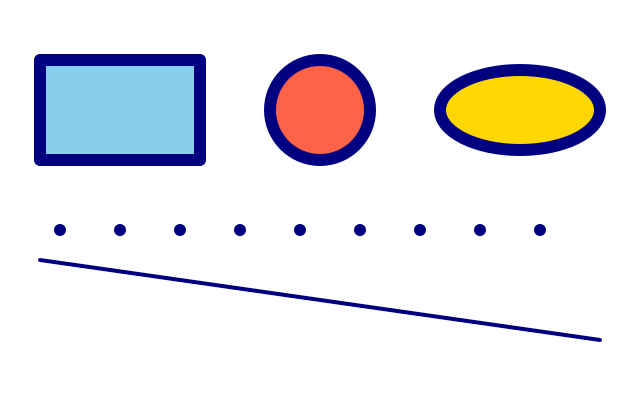
| Function | Placed by |
|---|---|
f.rect(x, y, w, h) |
its top-left corner |
f.circle(x, y, d) |
its centre; d is the diameter, not the radius |
f.ellipse(x, y, w, h) |
its centre |
f.line(x1, y1, x2, y2) |
its two ends; uses the stroke colour only |
f.point(x, y) |
a dot, as wide as the stroke |
Coordinates can have decimals — f.circle(100.5, 80.25, 40) — and edges are smoothed.
More shapes
import funground as f


def setup():
    f.size(640, 400)


def draw():
    f.background("white")
    f.fill("skyblue")
    f.square(30, 30, 100)                                  # top-left corner and size
    f.fill("gold")
    f.triangle(170, 130, 270, 130, 220, 30)                # three corners
    f.fill("seagreen")
    f.quad(310, 40, 420, 30, 400, 130, 330, 120)           # four corners, in order
    f.fill("orchid")
    f.polygon([(520, 30), (600, 70), (580, 130), (480, 130), (460, 70)])
    f.fill("tomato")
    f.arc(100, 280, 140, 140, 0, 270)                      # open (the default)
    f.arc(280, 280, 140, 140, 0, 270, "chord")
    f.arc(460, 280, 140, 140, 0, 270, "pie")


f.run()
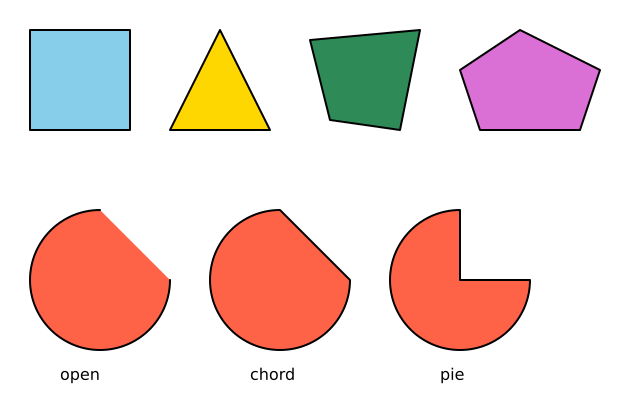
| Function | Notes |
|---|---|
f.square(x, y, size) |
Placed by its top-left corner, like rect |
f.triangle(...), f.quad(...) |
Corners in order; the shape is closed and filled |
f.polygon(points) |
A list of (x, y) points; closed and filled |
f.arc(x, y, w, h, start, stop, mode) |
Part of an ellipse centred at (x, y). Angles are in degrees, starting at the right (3 o'clock) and turning clockwise: 90 is straight down. "open" fills the slice but draws the outline only along the curve; "chord" closes it with a straight line; "pie" closes it through the centre |
Placing shapes by their centre or corners
Each shape has a usual way to be placed: rect by its top-left corner, ellipse by its centre.
You can change that. f.rect_mode(mode) changes how rect and square read their numbers.
f.ellipse_mode(mode) does the same for ellipse, circle and arc. The setting stays until you
change it again, and f.push() and f.pop() save and restore it.
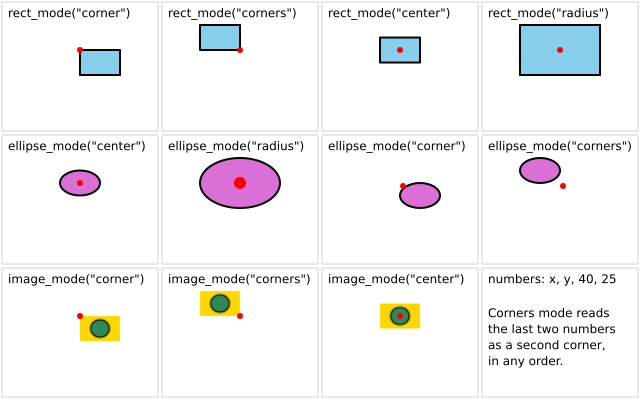
| Mode | The four numbers mean |
|---|---|
"corner" |
x, y is the top-left corner, then the width and height (the usual way for rect) |
"center" |
x, y is the centre, then the width and height (the usual way for ellipse) |
"radius" |
x, y is the centre, then half the width and half the height |
"corners" |
two opposite corners: x1, y1, x2, y2, in any order |
square and circle take one size, so "corners" works like "corner" for them.
f.image_mode(mode) does this for pictures: "corner" (the usual way), "center", or
"corners", where you give both corners and so must give a width and height. Pictures are
covered in 9. Paths, clipping and pictures.
import funground as f


def setup():
    f.size(640, 400)


def draw():
    f.background("white")
    f.fill("skyblue")
    f.rect_mode("center")
    f.rect(100, 100, 120, 60)              # centred on (100, 100)
    f.rect_mode("corners")
    f.rect(200, 60, 300, 140)              # from one corner to the opposite one
    f.fill("orchid")
    f.ellipse_mode("corner")
    f.ellipse(360, 60, 120, 80)            # its box starts at (360, 60)
    f.ellipse_mode("radius")
    f.ellipse(560, 100, 50, 30)            # radii, not widths


f.run()
The picture below draws the same four numbers under every mode. The red dot is (x, y).
Rounded corners
Give rect or square one more number and all four corners are rounded by that radius.
Give it four numbers and each corner gets its own radius. They go clockwise, starting at the top left:
top-left, top-right, bottom-right, bottom-left. This works as it does in p5.
A radius cannot be negative, and you must give one radius or four. A radius that is too big is cut
down to half the shorter side, so corners never overlap. If you use rect_mode, the box is placed
first and the radii are applied after. The fill, the outline and any shadow all follow the curves.
A path from f.path() has the same rect(x, y, w, h, radius), so you can join rounded shapes
with union and the other path operations.
import funground as f


def setup():
    f.size(640, 400)


def draw():
    f.background(245)
    f.fill("lightsteelblue")
    f.stroke("navy")
    f.stroke_width(2)
    f.rect(30, 30, 160, 60, 12)                    # one radius for every corner
    f.fill("gold")
    f.rect(230, 30, 200, 80, 30, 30, 30, 4)        # four radii: one nearly sharp corner
    f.fill("tomato")
    f.square(30, 150, 100, 28)                     # square works the same way
    tag = f.path().rect(200, 160, 120, 80, 20)
    dot = f.path().circle(320, 170, 60)
    f.fill("seagreen")
    f.draw_path(tag | dot)                         # a rounded rectangle joined to a circle


f.run()
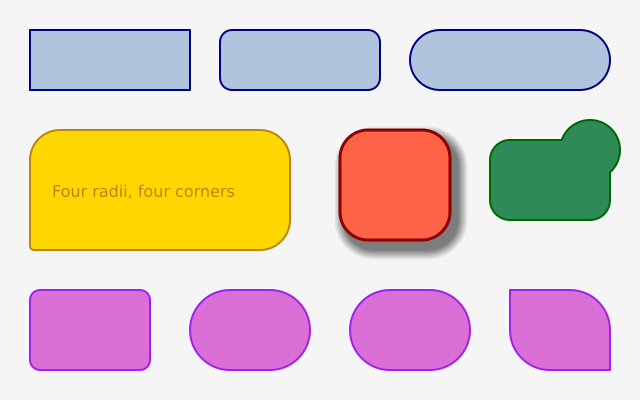
The picture below shows more: buttons, a speech bubble, a shadow and radii that are cut down.
For any other outline, build it from points: see 9. Paths, clipping and pictures.
See also
- Gallery: Shapes.
- Quick Reference: 2. Coordinates and drawing and 8. Shapes, paths and clipping.
- Words: canvas, coordinates and path.
Try it
- Draw a face: a big circle, two small circles for eyes and an
f.arc()for the smile. - Draw a row of five squares with a
forloop. Hint: add a number toxeach time round. - Draw the same
f.rect()four times, once with eachf.rect_mode(). Where does each one land?
Next: 4. Colour