5. Fill, stroke and lines
Every shape has an inside (fill) and an outline (stroke).
| Function | Effect on later shapes |
|---|---|
f.fill(colour) / f.no_fill() |
Colour the inside / leave it empty |
f.stroke(colour) / f.no_stroke() |
Colour the outline / draw no outline |
f.stroke_width(n) |
Outline and line thickness in pixels (at least 1) |
The defaults are a white fill, a black stroke and a stroke width of 1. The stroke is centred on the edge: a 10-pixel outline is 5 pixels outside the shape and 5 inside.
import funground as f


def setup():
    f.size(640, 400)


def draw():
    f.background("whitesmoke")
    f.fill("gold")
    f.stroke("black")
    f.stroke_width(3)
    f.circle(120, 140, 140)
    f.no_fill()
    f.stroke("tomato")
    f.stroke_width(10)
    f.rect(240, 70, 140, 140)
    f.fill("skyblue")
    f.no_stroke()
    f.ellipse(520, 140, 160, 100)


f.run()
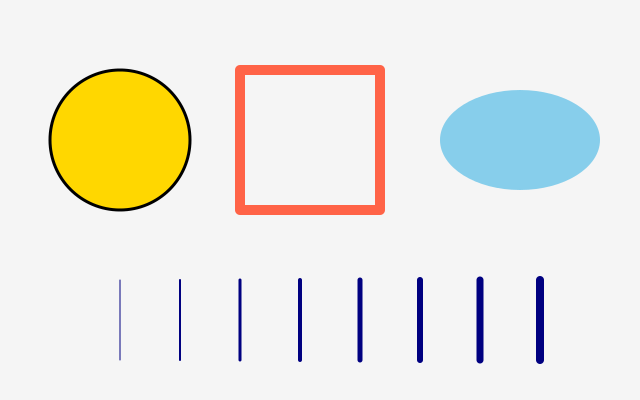
Settings stay in force until you change them — including into the next frame. To change them
for a few shapes only, see with f.saved_state(): in 8. Transforms.
Line ends, corners and dashes
| Function | Choices |
|---|---|
f.stroke_cap(cap) |
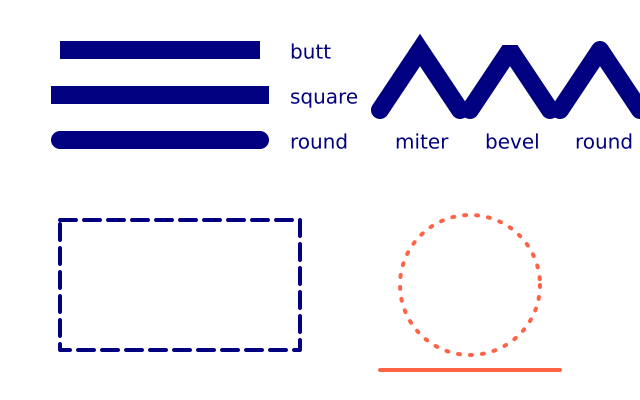
"round" (default), "square" (sticks out half the width past the end), "butt" (stops flat at the end) |
f.stroke_join(join) |
"round" (default), "miter" (sharp point), "bevel" (corner cut off) |
f.miter_limit(n) |
How far a sharp miter corner may stick out before it is cut off (default 10) |
f.stroke_dash(pattern, offset=0) |
Dashes: f.stroke_dash(10) or a list of dash and gap lengths, f.stroke_dash([12, 4, 2, 4]) |
f.no_dash() |
Solid lines again |
These are part of the style, like fill: a saved_state block puts them back.
Sharp pixels
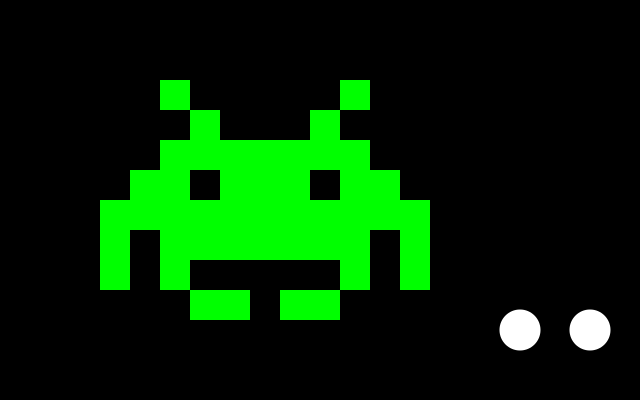
Edges are normally smoothed. f.no_smooth() switches that off, so every pixel is either the
shape's colour or not — just right for pixel art. f.smooth() switches it back. This is a
setting for the whole sketch, not part of the style: saved_state does not undo it.
import funground as f


def setup():
    f.size(320, 200)
    f.no_smooth()


def draw():
    f.background("black")
    f.no_stroke()
    f.fill("lime")
    f.scale(20)
    f.rect(2, 2, 3, 3)
    f.rect(8, 4, 2, 4)


f.run()
Mixing, see-through and shadows
Three settings change how everything drawn after them lands on the canvas. Like f.fill(),
they last until you change them, and with f.saved_state(): restores them.
| Function | What it does |
|---|---|
f.blend_mode(mode) |
How new drawing mixes with what is there. "multiply" darkens like overlapping inks, "screen" and "add" lighten like overlapping lights, "difference" inverts. "normal" is the default. |
f.opacity(amount) |
Makes everything see-through: 0 is invisible, 255 is solid. |
f.shadow(x, y, blur, color) |
A shadow moved by (x, y) and softened by blur pixels. The colour defaults to half-transparent black. |
f.no_shadow() |
No more shadows. |
import funground as f


def setup():
    f.size(640, 200)


def draw():
    f.background("white")
    f.no_stroke()
    f.blend_mode("multiply")
    for i, colour in enumerate(["cyan", "magenta", "yellow"]):
        f.fill(colour)
        f.circle(250 + i * 70, 100, 140)
    f.blend_mode("normal")


f.run()
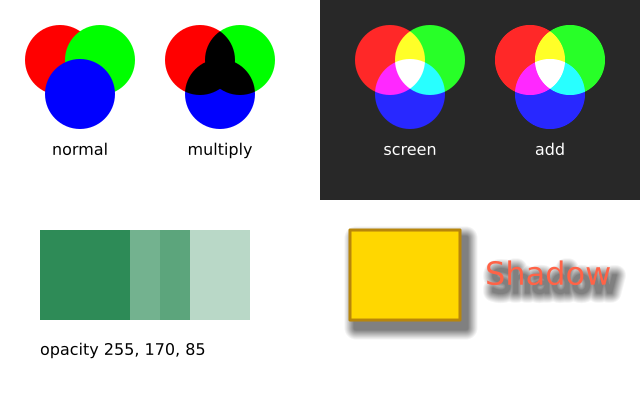
f.background() ignores all three, so each frame still starts clean.
Erasing
f.erase() turns drawing upside down. Everything you draw after it removes what is under
it, instead of painting. The removed part becomes see-through.
| Function | What it does |
|---|---|
f.erase(fill_strength=255, stroke_strength=255) |
Start erasing. 255 removes everything under the shape. 128 removes about half. 0 removes nothing. The first number is for the inside of shapes and text, the second for outlines and lines. |
f.no_erase() |
Go back to painting. |
Colours do not matter while you erase: a red circle and a blue circle erase the same. Gradients and
f.tint() are ignored too. f.blend_mode(), f.opacity() and f.shadow() are ignored as well.
Use the two strengths to control how much is erased. f.no_fill() and f.no_stroke() still work.
Erasing is part of the saved state, so f.push() and f.pop() bring it back. A picture made
with f.create_graphics() has its own erasing too. The best way to use it is to cut holes in a
picture and then draw that picture over something else:
import funground as f

cover = None


def setup():
    global cover
    f.size(400, 300)
    cover = f.create_graphics(400, 300)
    cover.background("navy")
    cover.no_stroke()
    cover.erase()                  # from here, drawing on the cover removes it
    cover.circle(200, 150, 160)
    cover.no_erase()


def draw():
    f.background("gold")
    f.image(cover, 0, 0)           # the gold shows through the hole


f.run()
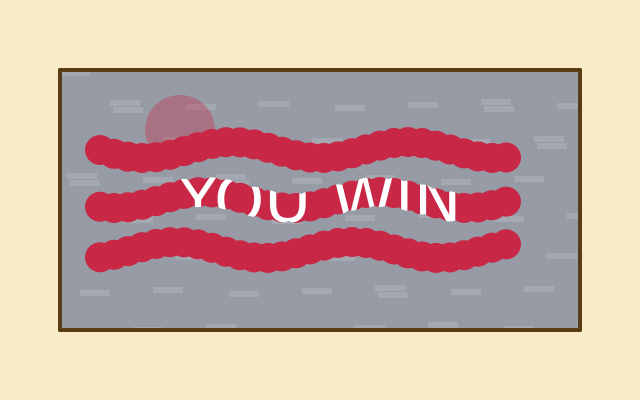
If you erase straight on the window canvas, the erased pixels are see-through, exactly like after
f.clear(). The window shows black behind them, and a saved PNG keeps the see-through pixels.
Saving as PDF or SVG. A PDF has no way to take paint away. Erasing a picture works: the picture is replayed as shapes and the hole shows what is behind it. Erasing straight on the canvas does not: in a PDF the earlier drawing stays and the hole is not visible. SVG files use a filter for it, so the result depends on the program that opens the file. If it matters, erase on a picture, or save a PNG.
See also
- Gallery: Fill, stroke and lines and Blending, opacity and shadows.
- Quick Reference: 3. Colours, fill, stroke and text.
Try it
- Draw a rectangle with no fill and a thick, dashed outline. Hint:
f.stroke_dash(...). - Draw three overlapping circles with
f.blend_mode("multiply"). Then try"screen"on a dark background. - Give a circle a shadow with
f.shadow(6, 6, 8). Then usef.no_shadow()so the next shape has none.
Next: 6. Text