Move with the keyboard
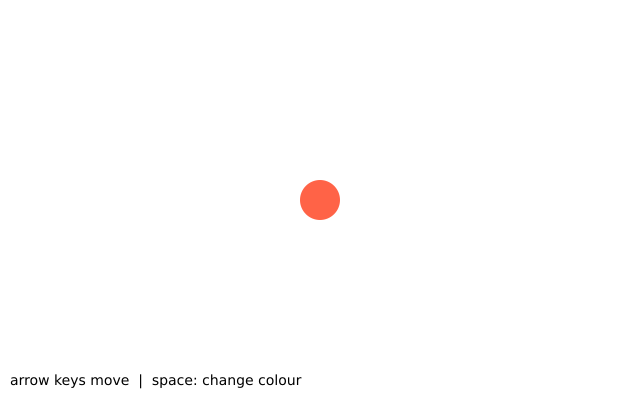
The arrow keys move a circle. The space bar changes its colour. The words at the bottom say which key came up last.
How it works
- There are two ways to read the keyboard. For smooth movement, ask in every frame whether a key is held: f.key_down("left").
- For one-off actions, define key_pressed(). It runs once for each press, and f.key says which key it was. Here the space bar switches the colour.
- key_released() runs when a key comes back up, and the sketch writes the key into message.
- Each held key changes x or y by speed. f.constrain() then keeps the circle inside the window.
- draw() wipes with f.background() and draws the circle at x, y every frame.
Make it yours
- Change speed = 4 for a faster or slower circle.
- Add the letter keys: write if f.key_down("a") or f.key_down("left"): to move with either.
- Change the two colours in key_pressed(), or add a third.
- Make a key change the size. Use f.key == "b" in key_pressed() and a size variable in f.circle().
- Add a second circle that moves with w, a, s and d.
The code
Copy it into a file and run it.
"""Move with the keyboard

The arrow keys move a circle. The space bar changes its colour. The words at the bottom say which
key came up last.

How it works:
- There are two ways to read the keyboard. For smooth movement, ask in every frame whether a key is
  held: f.key_down("left").
- For one-off actions, define key_pressed(). It runs once for each press, and f.key says which key
  it was. Here the space bar switches the colour.
- key_released() runs when a key comes back up, and the sketch writes the key into message.
- Each held key changes x or y by speed. f.constrain() then keeps the circle inside the window.
- draw() wipes with f.background() and draws the circle at x, y every frame.

Make it yours:
- Change speed = 4 for a faster or slower circle.
- Add the letter keys: write if f.key_down("a") or f.key_down("left"): to move with either.
- Change the two colours in key_pressed(), or add a third.
- Make a key change the size. Use f.key == "b" in key_pressed() and a size variable in
  f.circle().
- Add a second circle that moves with w, a, s and d.
"""
import funground as f

x, y = 320, 200
speed = 4
colour = "tomato"
message = "arrow keys move  |  space: change colour"


def setup():
    f.size(640, 400)


def draw():
    global x, y
    if f.key_down("left"):
        x -= speed
    if f.key_down("right"):
        x += speed
    if f.key_down("up"):
        y -= speed
    if f.key_down("down"):
        y += speed
    x = f.constrain(x, 20, f.width - 20)
    y = f.constrain(y, 20, f.height - 60)

    f.background("white")
    f.no_stroke()
    f.fill(colour)
    f.circle(x, y, 40)
    f.fill("black")
    f.text_size(14)
    f.text(message, 10, 372)


def key_pressed():
    global colour
    if f.key == " ":
        colour = "seagreen" if colour == "tomato" else "tomato"


def key_released():
    global message
    message = f"released: {f.key}"


f.run()