The window: cursor, size and full screen
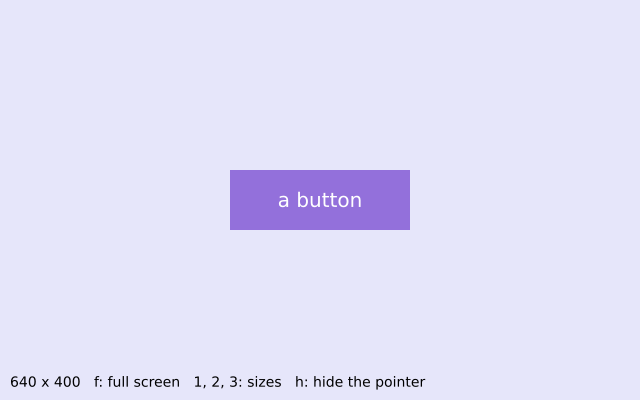
The pointer is a hand over the button and crosshairs everywhere else. Press f for full screen, 1, 2 or 3 to change the window's size, and h to hide the pointer.
How it works
- f.cursor() picks the mouse pointer: "arrow", "cross", "hand", "move", "text" or "wait". f.no_cursor() hides it.
- over_button() compares f.mouse_x and f.mouse_y with the button's box. draw() uses it to pick the cursor and the colour.
- f.full_screen() makes the window fill the screen. f.width and f.height then become the screen's size.
- f.resize_canvas() changes the size when you press 1, 2 or 3. The sizes are in the SIZES dictionary.
- Everything is placed with f.width and f.height, so the drawing fits whatever the size is.
Make it yours
- Add a size: put "4": (300, 600) in SIZES. Press 4 to try it.
- Change "hand" to "move" or "wait" to see other pointers.
- Change the size of the button: the 90 and 30 are half its width and height. Change them in over_button() and in f.rect() together.
- Make a second button lower down and give it its own over test.
- Change the colours in f.background() and f.fill().
The code
Copy it into a file and run it.
"""The window: cursor, size and full screen

The pointer is a hand over the button and crosshairs everywhere else. Press f for full screen,
1, 2 or 3 to change the window's size, and h to hide the pointer.

How it works:
- f.cursor() picks the mouse pointer: "arrow", "cross", "hand", "move", "text" or "wait".
  f.no_cursor() hides it.
- over_button() compares f.mouse_x and f.mouse_y with the button's box. draw() uses it to pick the
  cursor and the colour.
- f.full_screen() makes the window fill the screen. f.width and f.height then become the screen's
  size.
- f.resize_canvas() changes the size when you press 1, 2 or 3. The sizes are in the SIZES
  dictionary.
- Everything is placed with f.width and f.height, so the drawing fits whatever the size is.

Make it yours:
- Add a size: put "4": (300, 600) in SIZES. Press 4 to try it.
- Change "hand" to "move" or "wait" to see other pointers.
- Change the size of the button: the 90 and 30 are half its width and height. Change them in
  over_button() and in f.rect() together.
- Make a second button lower down and give it its own over test.
- Change the colours in f.background() and f.fill().
"""
import funground as f

SIZES = {"1": (640, 400), "2": (800, 500), "3": (400, 400)}


def setup():
    f.size(640, 400)
    f.cursor("cross")


def over_button():
    return abs(f.mouse_x - f.width / 2) < 90 and abs(f.mouse_y - f.height / 2) < 30


def draw():
    f.background("lavender")
    f.cursor("hand" if over_button() else "cross")
    f.no_stroke()
    f.fill("slateblue" if over_button() else "mediumpurple")
    f.rect(f.width / 2 - 90, f.height / 2 - 30, 180, 60)
    f.fill("white")
    f.text_size(20)
    f.text_align("center", "center")
    f.text("a button", f.width / 2, f.height / 2)
    f.fill("black")
    f.text_size(14)
    f.text_align("left", "bottom")
    f.text(f"{f.width} x {f.height}   f: full screen   1, 2, 3: sizes   h: hide the pointer",
           10, f.height - 10)


def key_pressed():
    if f.key == "f":
        f.full_screen()
    elif f.key in SIZES:
        f.resize_canvas(*SIZES[f.key])
    elif f.key == "h":
        f.no_cursor()


f.run()