More shapes
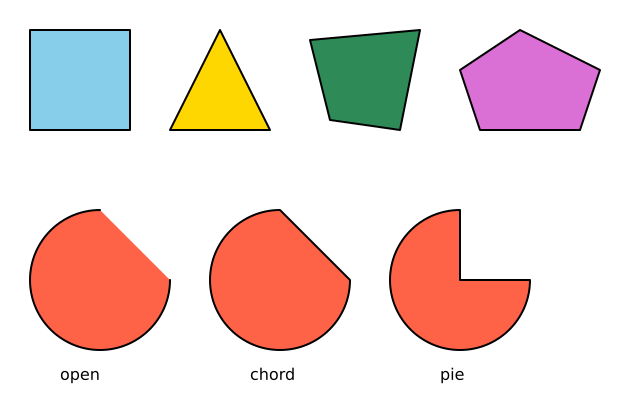
square, triangle, quad and polygon for straight-sided shapes; arc for part of an ellipse, with angles in degrees turning clockwise from the right, in three modes: open, chord and pie.
How it works
- f.square(x, y, size) is placed by its top-left corner. f.triangle() takes three corners and f.quad() takes four.
- f.polygon() takes a list of (x, y) points and joins them in order. It can have any number of corners.
- f.arc(x, y, width, height, start, stop) draws part of an ellipse. Angles are in degrees. 0 points right and the angle grows clockwise.
- The last, optional, value of f.arc() is the mode. "open" leaves the ends loose, "chord" joins them with a straight line, and "pie" joins them to the centre.
- The stroke and fill are set once at the top. They stay the same for every shape.
Make it yours
- Change 270 in the f.arc() lines to make a bigger or smaller slice. Try 90 or 180.
- Change the start angle from 0 to 45 to turn the slice round.
- Add a corner to the f.polygon() list to make a six-sided shape.
- Move one point of the f.quad() and see how the shape bends.
- Use f.no_stroke() or a new f.stroke() colour above the shapes.
The code
Copy it into a file and run it.
"""More shapes

square, triangle, quad and polygon for straight-sided shapes; arc for part of an ellipse, with
angles in degrees turning clockwise from the right, in three modes: open, chord and pie.

How it works:
- f.square(x, y, size) is placed by its top-left corner. f.triangle() takes three corners and
  f.quad() takes four.
- f.polygon() takes a list of (x, y) points and joins them in order. It can have any number of
  corners.
- f.arc(x, y, width, height, start, stop) draws part of an ellipse. Angles are in degrees. 0 points
  right and the angle grows clockwise.
- The last, optional, value of f.arc() is the mode. "open" leaves the ends loose, "chord" joins
  them with a straight line, and "pie" joins them to the centre.
- The stroke and fill are set once at the top. They stay the same for every shape.

Make it yours:
- Change 270 in the f.arc() lines to make a bigger or smaller slice. Try 90 or 180.
- Change the start angle from 0 to 45 to turn the slice round.
- Add a corner to the f.polygon() list to make a six-sided shape.
- Move one point of the f.quad() and see how the shape bends.
- Use f.no_stroke() or a new f.stroke() colour above the shapes.
"""
import funground as f


def setup():
    f.size(640, 400)


def draw():
    f.background("white")
    f.stroke("black")
    f.stroke_width(2)
    f.fill("skyblue")
    f.square(30, 30, 100)                                  # top-left corner and size
    f.fill("gold")
    f.triangle(170, 130, 270, 130, 220, 30)
    f.fill("seagreen")
    f.quad(310, 40, 420, 30, 400, 130, 330, 120)
    f.fill("orchid")
    f.polygon([(520, 30), (600, 70), (580, 130), (480, 130), (460, 70)])

    f.fill("tomato")
    f.arc(100, 280, 140, 140, 0, 270)                      # open (the default)
    f.arc(280, 280, 140, 140, 0, 270, "chord")
    f.arc(460, 280, 140, 140, 0, 270, "pie")
    f.fill("black")
    f.text_size(16)
    for x, label in ((60, "open"), (250, "chord"), (440, "pie")):
        f.text(label, x, 365)


f.run()