Text
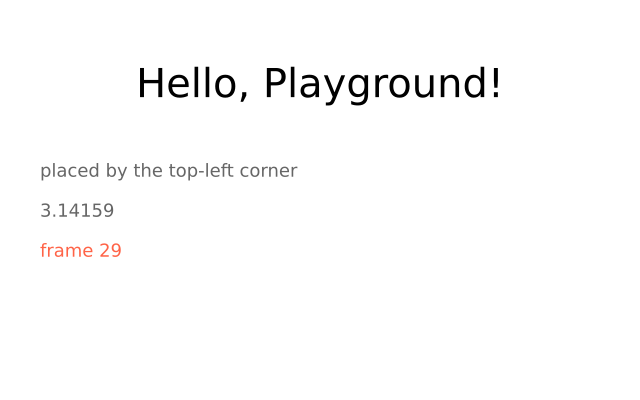
f.text_size() sets the size in pixels, and f.text() places a message by its top-left corner. f.text_width() measures a message, which is how the first line is centred.
How it works
- f.text(message, x, y) draws words with their top-left corner at (x, y). It uses the current fill colour.
- f.text_size() sets the size in pixels. It stays the same until you change it, so the example sets 40 for the heading and 18 for the notes.
- f.text_width(message) tells you how wide a message is. Centring is (f.width - width) / 2.
- f.text() turns a number into text for you, so f.text(3.14159, 40, 200) works.
- The color= option sets the colour for one call only, as in the frame counter. f.frame_count is the number of frames drawn so far.
Make it yours
- Change the message, or change 40 in f.text_size(40), and watch the centring keep up.
- Change the heading colour: f.fill("black") can be any colour name, such as "navy".
- Centre the grey lines too. Use f.text_width() on each one, in the same way as the heading.
- Show a changing number: f.text(f.mouse_x, 40, 280) follows the mouse.
- Write a line several times: for i in range(5): f.text("Hi", 40, 280 + i * 20).
The code
Copy it into a file and run it.
"""Text

f.text_size() sets the size in pixels, and f.text() places a message by its top-left corner.
f.text_width() measures a message, which is how the first line is centred.

How it works:
- f.text(message, x, y) draws words with their top-left corner at (x, y). It uses the current fill
  colour.
- f.text_size() sets the size in pixels. It stays the same until you change it, so the example sets
  40 for the heading and 18 for the notes.
- f.text_width(message) tells you how wide a message is. Centring is (f.width - width) / 2.
- f.text() turns a number into text for you, so f.text(3.14159, 40, 200) works.
- The color= option sets the colour for one call only, as in the frame counter. f.frame_count is the
  number of frames drawn so far.

Make it yours:
- Change the message, or change 40 in f.text_size(40), and watch the centring keep up.
- Change the heading colour: f.fill("black") can be any colour name, such as "navy".
- Centre the grey lines too. Use f.text_width() on each one, in the same way as the heading.
- Show a changing number: f.text(f.mouse_x, 40, 280) follows the mouse.
- Write a line several times: for i in range(5): f.text("Hi", 40, 280 + i * 20).
"""
import funground as f


def setup():
    f.size(640, 400)


def draw():
    f.background("white")
    f.fill("black")
    f.text_size(40)
    message = "Hello, Playground!"
    x = (f.width - f.text_width(message)) / 2      # centred
    f.text(message, x, 60)

    f.text_size(18)
    f.fill("gray40")
    f.text("placed by the top-left corner", 40, 160)
    f.text(3.14159, 40, 200)                        # numbers become text
    f.text(f"frame {f.frame_count}", 40, 240, color="tomato")


f.run()