From pixels to marks, step 6: a palette and a GIF
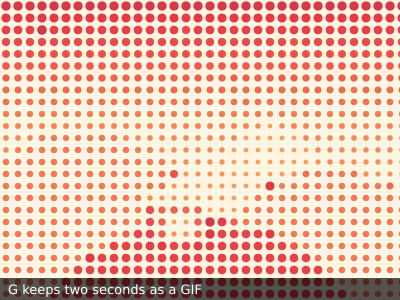
The dots get colour, but only from a palette of three colours you choose: dark cells take the first, middle ones the second and light ones the third, on a paper of your choice. Fewer colours make a stronger picture, like a print. Press G to keep two seconds of it as a GIF.
In the guide: Project 10: From pixels to marks › Step 6: a palette and a GIF
How it works
- PALETTE holds three colours, from dark to light. f.lerp_color() blends between neighbours, so the colours change smoothly with brightness instead of jumping.
- The dot's size still comes from darkness, as in step 2, so the picture keeps its shape.
- f.save_gif("dots.gif", 2) keeps the next two seconds. Saving a GIF takes a moment, so the bar says "Saving" while it records and "Saved" afterwards.
- With no camera the photo is used, and the GIF shows it still.
Make it yours
- Choose your own palette and paper: a sunset, the sea, your school colours.
- Use four colours: add one to PALETTE and change how the blend is picked.
- Leave out the size change, so every dot is the same and only the colour speaks.
- Make the GIF longer, and remember that a long GIF is slow to save.
The code
Copy it into a file and run it.
"""From pixels to marks, step 6: a palette and a GIF

The dots get colour, but only from a palette of three colours you choose: dark cells take the first, middle ones
the second and light ones the third, on a paper of your choice. Fewer colours make a stronger picture, like a print.
Press G to keep two seconds of it as a GIF.

How it works:
- PALETTE holds three colours, from dark to light. f.lerp_color() blends between neighbours, so the colours change
  smoothly with brightness instead of jumping.
- The dot's size still comes from darkness, as in step 2, so the picture keeps its shape.
- f.save_gif("dots.gif", 2) keeps the next two seconds. Saving a GIF takes a moment, so the bar says "Saving"
  while it records and "Saved" afterwards.
- With no camera the photo is used, and the GIF shows it still.

Make it yours:
- Choose your own palette and paper: a sunset, the sea, your school colours.
- Use four colours: add one to PALETTE and change how the blend is picked.
- Leave out the size change, so every dot is the same and only the colour speaks.
- Make the GIF longer, and remember that a long GIF is slow to save.
"""
import funground as f
from funground import camera

WIDTH, HEIGHT = 400, 300
CELL = 12
FPS = 12
PAPER = "#fdf6e3"
PALETTE = ["#1d3557", "#e63946", "#f4a261"]       # dark, middle, light
photo = f.load_image("data/photo.jpg")      # used when there is no camera
cam = None
recording_until = 0


def setup():
    global cam
    f.size(WIDTH, HEIGHT)
    f.no_stroke()
    try:
        cam = camera.open()
        cam.start(WIDTH, HEIGHT)
    except RuntimeError:
        cam = None


def key_pressed():
    global recording_until
    if f.key in ("g", "G") and f.frame_count >= recording_until:
        f.save_gif("dots.gif", 2)
        recording_until = f.frame_count + 2 * FPS


def colour_for(light):
    """A colour from the palette for a brightness from 0 (dark) to 1 (light), blended between neighbours."""
    if light < 0.5:
        return f.lerp_color(PALETTE[0], PALETTE[1], light * 2)
    return f.lerp_color(PALETTE[1], PALETTE[2], (light - 0.5) * 2)


def draw():
    picture = cam.picture() if cam is not None and cam.is_ready() else photo
    f.background(PAPER)
    for y in range(0, HEIGHT, CELL):
        for x in range(0, WIDTH, CELL):
            light = picture.get(min(x + CELL // 2, WIDTH - 1), min(y + CELL // 2, HEIGHT - 1)).brightness / 100
            f.fill(colour_for(light))
            f.circle(x + CELL / 2, y + CELL / 2, CELL * (1.1 - light * 0.7))
    if f.frame_count < recording_until:
        words = "Recording dots.gif..."
    elif recording_until and f.frame_count < recording_until + 3 * FPS:
        words = "Saved dots.gif."
    else:
        words = "G keeps two seconds as a GIF"
    f.fill(0, 0, 0, 170)
    f.rect(0, HEIGHT - 22, WIDTH, 22)
    f.fill("white")
    f.text_size(13)
    f.text(words, 8, HEIGHT - 18)


f.run(fps=FPS)